
View As function in Client Portal Administration
It's now very easy to see how a Client Portal Kanban board will appear when viewed by one of your clients. You can use the new View As function to see Client Portal boards as they appear to your clients.
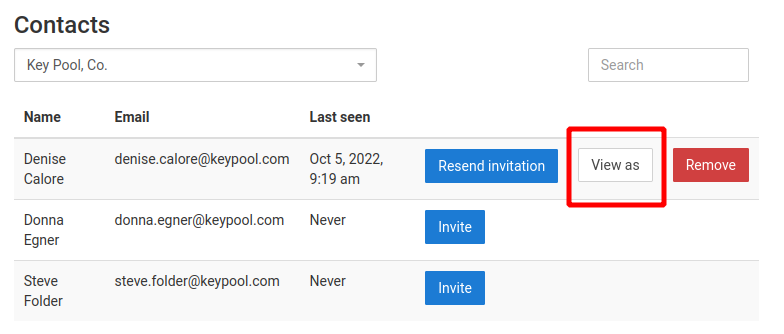
To view a board as a contact, browse to the administration page:
- Click the gear icon in the main menu.
- Click Client Portal.
- Under Contacts, select the company whose user you want to view the board as.
- In the row for the user, click View As. You will see a client portal board just as the user would see it. You can select a different client portal board from the main menu.
To exit View As mode, click the button at the right side of the main menu.
Comments
No comments yet.