
View and edit schedule entries
Now in TopLeft you can view a list of schedule entries and edit them too. ConnectWise calls these records schedule entries, Autotask calls them service calls, and Halo calls them appointments.
In the record editing screen, on the Dispatch tab, you'll now see a pod like this.
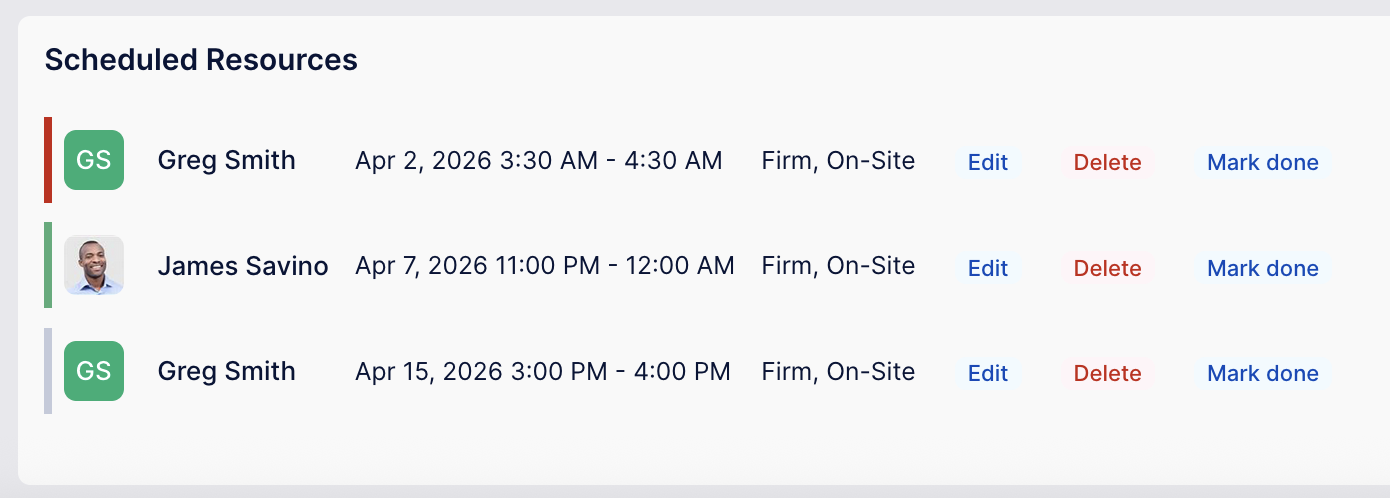
The border on the far left indicates the timing of the schedule. Red means it's in the past, green means it's today, and grey means it's tomorrow or later.
To edit the schedule, click edit. The details appear in the editing form for you to update.
To delete the schedule, just click delete and confirm the prompt.
ConnectWise users can click "Mark done" to mark the schedule as finished. This causes it to disappear from the list, since TopLeft only shows not-done schedules. You can mark your own or other user's schedules as finished.
Comments
No comments yet.