
Use TopLeft in a ConnectWise Custom Menu Entry
TopLeft boards can be embedded in ConnectWise Manage as a custom menu entry so managers and technicians don't need to leave ConnectWise to use it. They also don't need to log into TopLeft, as TopLeft uses authentication data provided by ConnectWise.
For more information on custom menu entries, review the ConnectWise documentation.
Adding a TopLeft Menu Entry to ConnectWise
To embed TopLeft as a custom menu entry in ConnectWise, follow these steps.
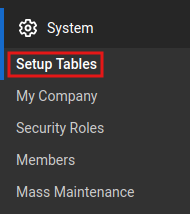
Navigate to Setup Tables. In the main menu click System > Setup Tables.
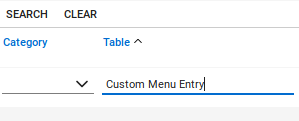
Search for "Custom Menu Entry".
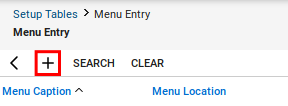
Click the plus icon.
Enter a name for the menu entry in the Menu Caption field.
Choose a location from the Menu Location dropdown.
Set Origin to the URL of your TopLeft application. For example: "https://example.topleft.team/".
In the Link field, enter the address of the TopLeft Kanban board you wish to embed in the menu entry. To get this URL, from the TopLeft application edit the board and click Actions, then click Embed in ConnectWise. A dialog showing the URL opens- copy the URL and paste it into the Link field.
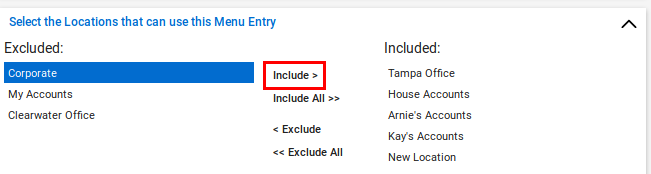
Select the locations that can use the menu entry and click the Include button to move them to the included column. Or click Include All if you want the entry available to all locations.
Click save.
Refresh your browser window. ConnectWise requires the browser to be refreshed before it will show the new menu entry.
Navigate to the menu where you added your entry and verify your TopLeft app loads.
Further Reference
Refer to the ConnectWise documentation: https://docs.connectwise.com/ConnectWise_Documentation/090/020/070/039
Updated September 23, 2026
Comments
No comments yet.