
How do I enter time?
Enter time on a ticket from the card menu, or track it with a card timer.
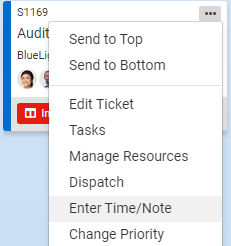
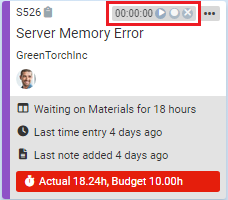
To enter time in TopLeft, you can follow these steps:
- Click on the ticket for which you want to enter time.
- Select the menu options for the ticket (represented by three dots on the top right of the card),
- In the menu you will find an option for "Enter Time/ Note".
- Click on that option to bring up a form or dialog box for entering the time.
- Enter the time spent on the ticket in the form, specifying the hours or minutes worked.
- You may also have the option to add notes or comments related to the work done.
Alternatively, you can also use the timers that are available on the cards in TopLeft. Click on the timer on the card of the ticket you are working on to start tracking time, and then log that time entry in your PSA. See Using Timers to Track Time
By entering time in TopLeft, you can accurately track the time spent on each ticket, which helps in measuring productivity, analyzing resource allocation, and generating reports for billing or performance analysis purposes.
Updated September 23, 2026
Comments
No comments yet.