
My Calendar (Beta)
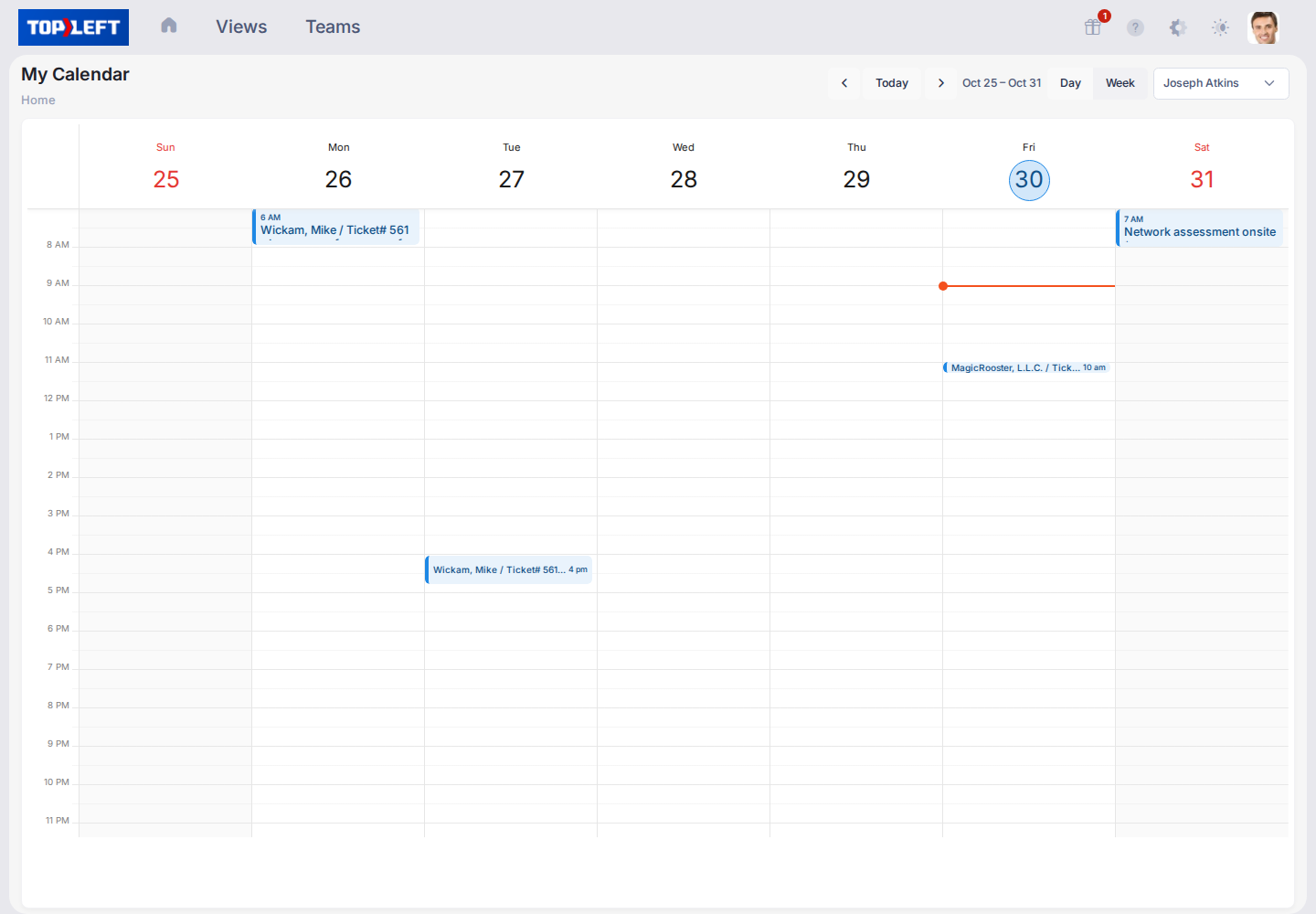
Your own bookings from every board in one calendar, by day or by week.
My Calendar shows your bookings in one calendar, whichever board the work is on. Use it to see what your day or week holds before you pick up more work.
Before you start
- You need a TopLeft license.
- Your TopLeft user must be linked to your member in ConnectWise, your resource in Autotask, or your agent in HaloPSA. If it isn't, the page says so.
Open it
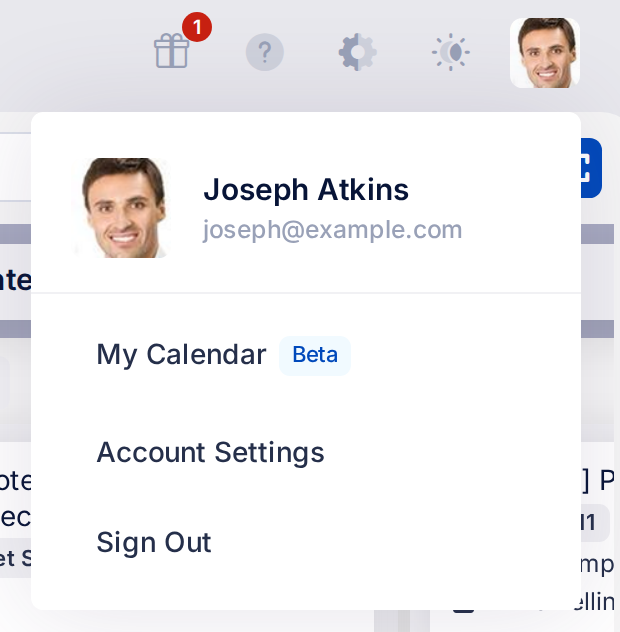
Open your account menu and select My Calendar.
Use it
- Day or Week. It opens on Week.
- Today and the arrows move you a day or a week at a time.
- Select a booking to open its record. TopLeft opens it in one of your views that lists the record.
It shows schedule entries from ConnectWise, service calls from Autotask, and appointments from HaloPSA. Times follow the 12 or 24-hour clock in your account settings.
See a teammate's calendar
If your views include other people, a list at the top of the page shows whose calendar you're looking at. Choose a name to see their bookings. The list holds the people your views can dispatch to.
Limits
- Read only. To book, move or change work, use the Dispatch Portal or the record's Dispatch tab.
- Not every booking opens a record. A booking with no ticket or task behind it, like a ConnectWise internal meeting, shows "This entry is not linked to a record."
- Records outside your views don't open. You see "That record is not in any view you can open."
- Nothing is remembered. The page opens on your own calendar, this week, every time.
Related
Updated November 12, 2026
Comments
No comments yet.