
Workflows in Views
In a Kanban board, columns represent the stages each work item progresses through from beginning to end.
In TopLeft, part of defining a View is to define its workflow stages, so columns can be shown on the Kanban board.
Workflow stage options are shown on the Workflow tab of the View edit page. To open it, open the view, click Board at the top left, then Edit this view, and open the Workflow tab.
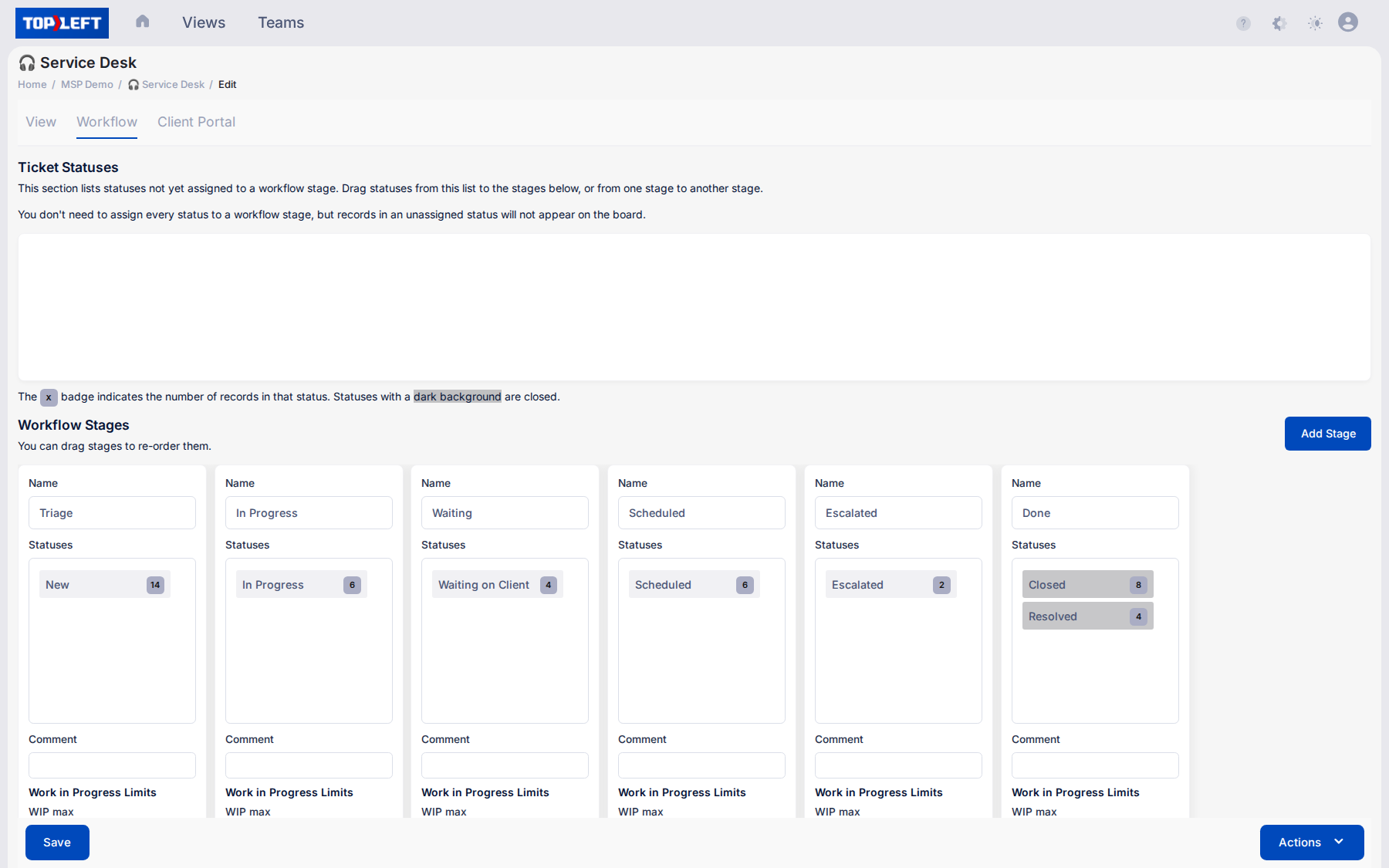
There is no limit to the number of stages in a View, but generally views are easiest to use when they have no more than 6 or 7 stages.
To add a stage, click Add Stage.
Mapping Statuses
The most important part of a stage is its association with statuses. The top of the Workflow tab contains a list of the statuses your work items can be in- for example, New, Waiting, In Progress, Closed, and so on.

A stage can be associated with multiple statuses. This is commonly done for variations of a status, such as Waiting for Customer, Waiting on Vendor, and other waiting statuses.
To associate a status with a stage, drag the name of the status to the Statuses field of the stage. You can also drag statuses between stages, or back to the unassigned list.
Stage Options
Stages have the following fields:
- General options
- Name
- Statuses: The list of statuses associated with the stage
- Comment: A short message that appears as a tooltip on the column
- Work in Progress limits
- WIP max: show the column background in red to indicate a problem when there are more than the given number of cards in the column.
- WIP max per person: applies when using member assignment grouping only- show column/group background in red to indicate a problem when there are more than the given number of cards in the group's column.
- Labels and Errors
- Time in status: show a red tag on the card when it has been in its status for longer than the given amount of time
- Filters
- Exclude by time in status: don't show cards in the column when they have been in their status for longer than the given amount of time
- Display options
- Conditional formatting: use the selected format for this column instead of the format chosen on the View.
- Automatic ordering: how this column orders its cards, or inherit the order from the View.
- Extra width priority: If space permits, show cards side-by-side in columns with higher priorities.
- Time
- On drag to this column: open the time entry window, start a timer, or both, when a card is dragged into the column. See Time Entry on Drag.
Updated October 6, 2026
Comments
No comments yet.