
Force Immediate Data Synchronization
TopLeft synchronizes data with your PSA periodically and when your PSA informs TopLeft records have changed. However, PSAs don't tell TopLeft about every type of change, and TopLeft synchronizes some types of data only infrequently because it doesn't change very often.
This means it can take a while for TopLeft to learn about certain changed data in your PSA. Most commonly this is seen when changing your list of ticket statuses.
You can force TopLeft to synchronize data so you don't have to wait until it happens automatically.
To force a sync, follow these steps:
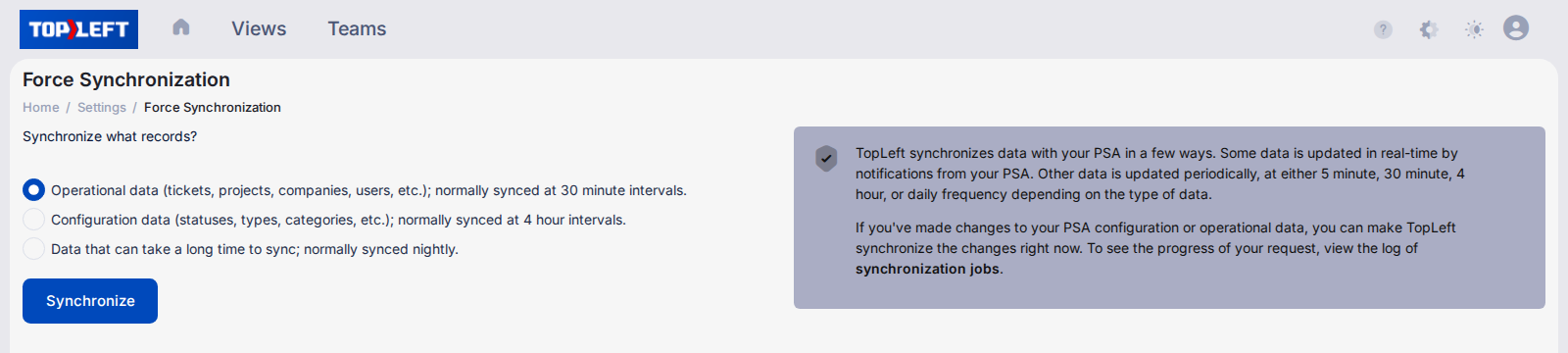
- Click the gear icon at the top right, then All Settings. Under Data Sync, click Force Synchronization.
- Pick what to synchronize: operational data (tickets, projects, companies, users and so on), configuration data (statuses, types, categories and so on), or the data normally synced nightly.
- Click Synchronize to start the sync job.
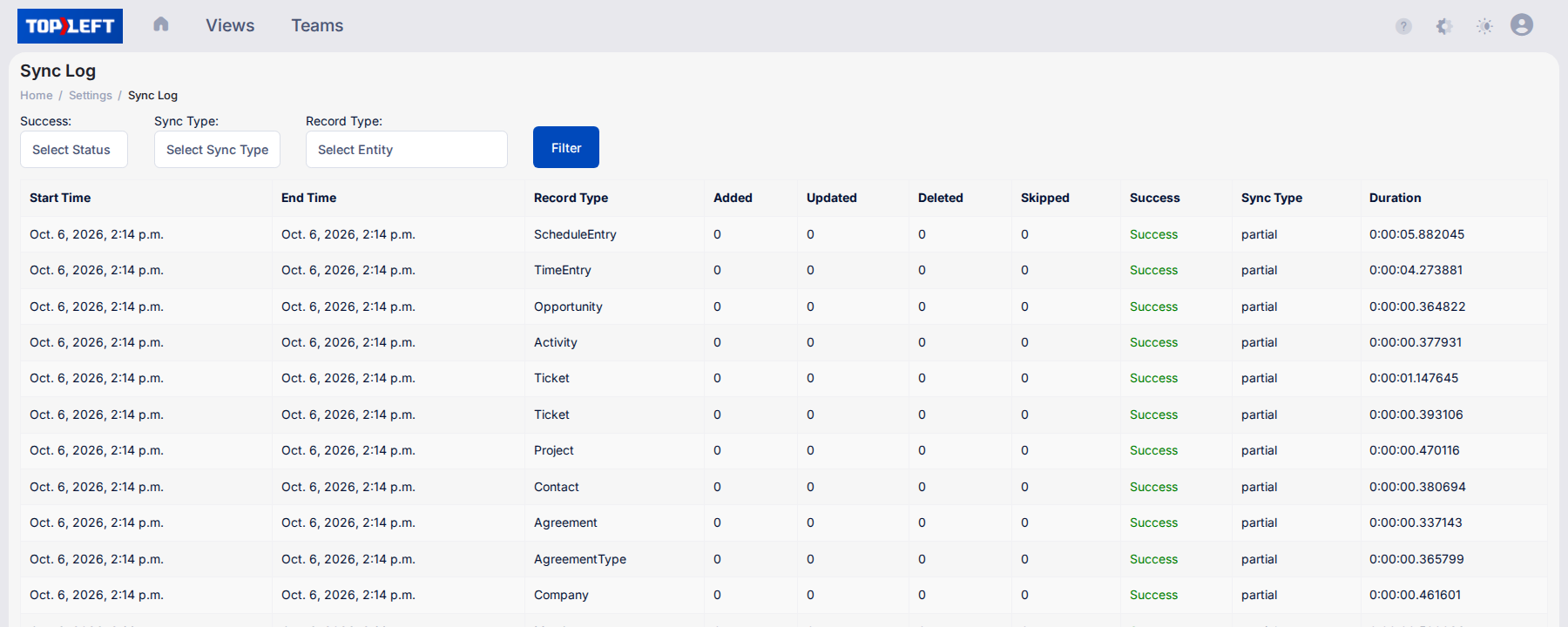
- Follow its progress by clicking "synchronization jobs" on that page, or open the sync log: the gear icon, All Settings, then Sync Log under Logs.
For more information, see Understanding Data Synchronization.
Updated October 6, 2026
Comments
No comments yet.