
Editing Records
How to open the editor for tickets and other PSA records in TopLeft. Editing needs an Engineer or Manager license.
Legacy interface
You can edit PSA records directly in TopLeft. This helps you work faster throughout your day by avoiding switching between TopLeft to view your data and your PSA to update your data.
There are a few ways to edit records, depending on the type of record.
Editing Tickets
You can open the ticket editor in a few different ways.
- Just click on the card. The editor opens to your last-opened tab.
- Click one of the buttons at the bottom of the card. Each button opens the editor with a particular tab already visible (ticket details, time entry, dispatch, or file attachments).

- Click the "..." button on the card, then from the menu choose which tab of the editor to open.
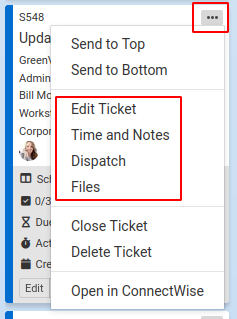
- Hover your mouse cursor over a card and use a keyboard shortcut to open the editor. You can use the Help > Keyboard Shortcut menu to see the shortcuts. (Hint: they're the same as the letters on the bar of buttons on the card.)
Editing Projects, Opportunities, and Activities
- Click the ellipsis menu on the card. Then click the option for the type of data you want to add or edit. This will bring up a dialog where you can edit the record.
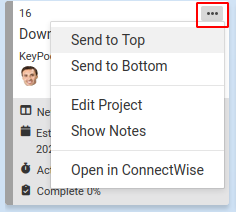
Also, users with a Manager license can edit project and task data from Gantt charts.
Each type of Kanban board offers different options for managing the data of the records. Choose your type of board from the list below to see more information about editing data.
| ConnectWise Manage | Datto Autotask PSA |
|---|---|
| Tickets (service or project or both) | |
| Projects | |
| Sales Opportunities | |
| Activities | Tickets |
| Project Tasks | |
| Projects |
Updated September 29, 2026