
Understanding ConnectWise Project Cards
What each part of a card shows on a ConnectWise project board.
The parts of a project card are:
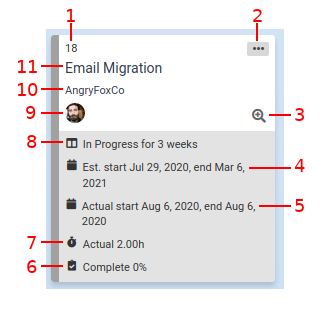
- Project ID. You can easily copy the project ID to your clipboard by hovering over the number with your cursor, then clicking the
 icon that appears.
- Card menu, with these functions:
- Send to Top: ranks the project at the highest priority in the column
- Send to Bottom: ranks the project at the lowest priority in the column
- Edit Project: view and change various properties of the project
- Open in ConnectWise: open the project in the ConnectWise web app. You can also click the project title to do this.
- Ticket board link: drill into the project's tickets- this opens a ticket board filtered to show only tickets from this project. If this doesn't appear, then the Kanban board's "Ticket board" field has not been set.
- Estimated start and end of the project. This is shown if the board's "Estimated start and end" option is enabled.
- Actual start and end of the project. This is shown if the board's "Actual start and end" option is enabled.
- The Completion percent of the project. This is shown if the board's "Percentage complete" option is enabled.
- The Actual hours on the project. This is shown if the board's "Actual hours" option is enabled.
- Length of time since the project has changed statuses in TopLeft. This is shown if the column's "Status age" option is enabled.
- The Project manager of the project.
- Company name
- Project name
Updated September 23, 2026
Comments
No comments yet.