
Integrate with TimeZest
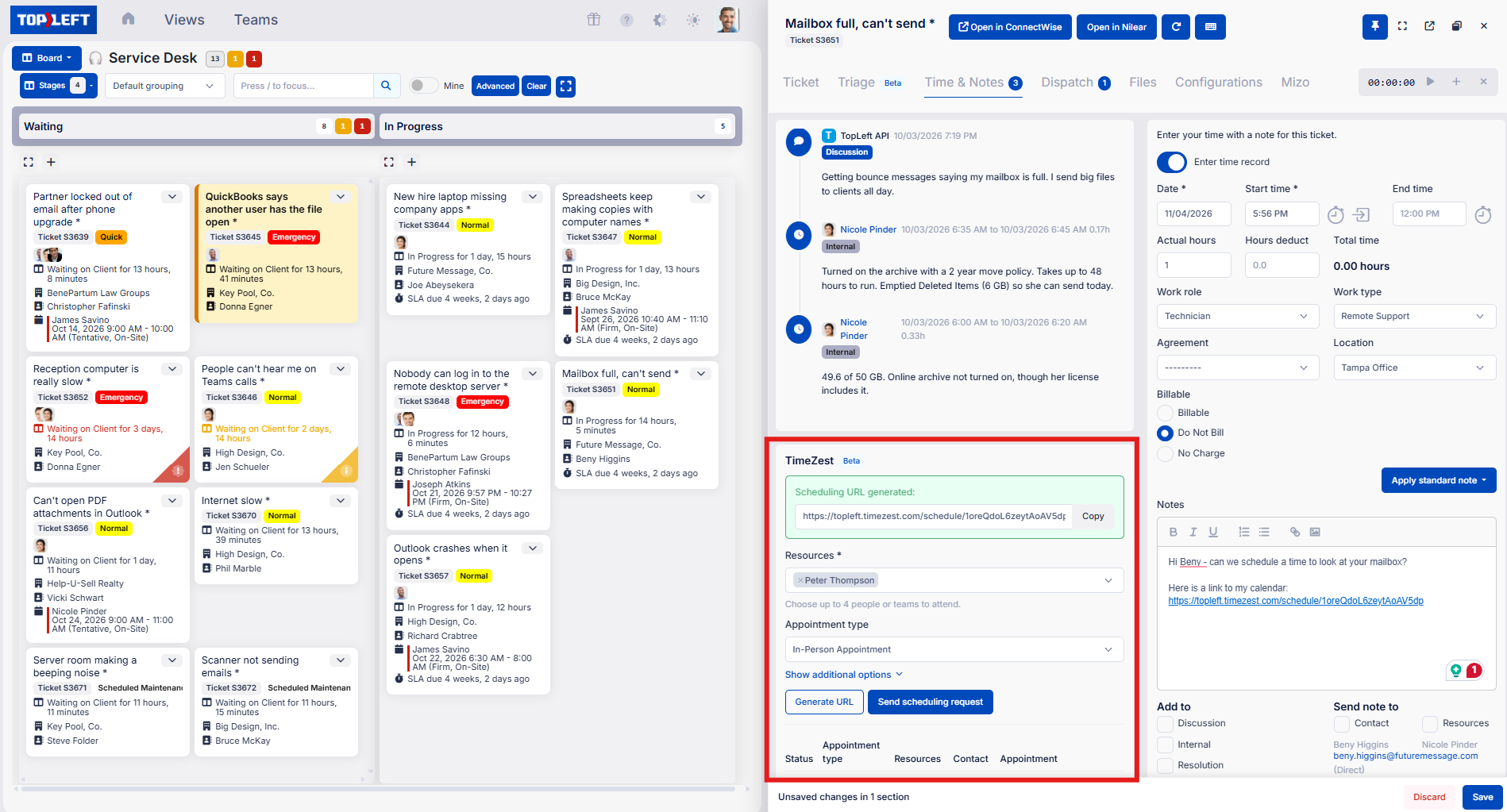
Send TimeZest scheduling requests, or copy a booking link, from the Time & Notes tab of a ticket or project task in TopLeft.
TimeZest lets clients book a time with your team from your real calendars. With TimeZest connected, anyone working a card in TopLeft can send a scheduling request or copy a booking link from the card's Time & Notes tab, without opening the PSA.
Before you start
- You need a TimeZest account that is already connected to your PSA.
- A TopLeft administrator does the setup below once.
- Scheduling is part of the Manager and User seats. Viewer seats are read-only and can't send requests.
Set it up
Connect TimeZest
- In TimeZest, open the API Keys page and create a read/write key.
- In TopLeft, go to Settings, then Integrations, then TimeZest.
- Paste the key into API key.
- Turn on Show TimeZest in the ticket editor.
- Click Save.
To stop TimeZest emailing clients from TopLeft, also turn on Generate scheduling URLs only. The panel then shows only Generate URL, and your team sends the link themselves.
To take the panel away for everyone, turn off Show TimeZest in the ticket editor. To disconnect, tick Remove the stored key and save.
Link your teams (optional)
TopLeft fills in Resources for you. If your TopLeft email matches a TimeZest agent, that agent is picked. If not, TopLeft picks the TimeZest team linked to your TopLeft team.
- Go to Settings, then Teams, and open a team.
- Choose its TimeZest team.
- Click Save.
Do this for teams with members who have no TimeZest agent of their own.
Use it
Open a card from any board and go to the Time & Notes tab. The TimeZest panel sits below time entry.
- Check Resources: up to 4 people or teams to attend.
- Pick the Appointment type.
- Click Send scheduling request to have TimeZest email the contact, or Generate URL to get a link you can copy into a note, a Teams chat or your own email.
For example: a client's printer needs an onsite visit. Generate a URL, paste it into the note to the client with "pick a time that suits you", and move on to your next card. When the client books, the appointment lands on the technician's calendar.
Additional options
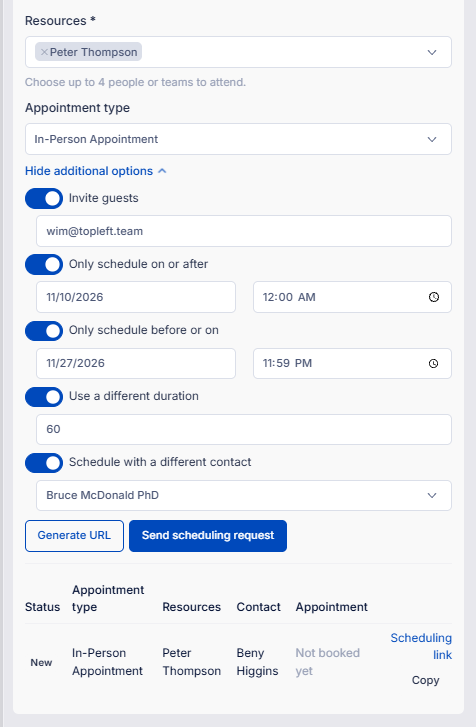
Click Show additional options for these. Each one is a switch that shows its own fields.
| Option | What it does |
|---|---|
| Invite guests | Adds other email addresses to the appointment |
| Only schedule on or after | The earliest date and time the client can book |
| Only schedule before or on | The latest date and time the client can book |
| Use a different duration | A length in minutes for this appointment only |
| Schedule with a different contact | Another active contact at the same client |
Track requests
Every request for the card is listed under the form with its Status (new, sent, scheduled, cancelled or closed), Appointment type, Resources, Contact and Appointment time. Until the client books, the time reads "Not booked yet". Use Scheduling link or Copy to send the link again.
What it can't do
- Autotask project tasks: the panel shows on Autotask tickets only, because TimeZest has no Autotask task to attach a request to. On ConnectWise it shows on service tickets, project tickets and project issues; on HaloPSA, on tickets and projects.
- Saving the card: a scheduling request is sent the moment you click the button. It isn't part of the card's Save and isn't undone by Discard.
Troubleshooting
- No TimeZest panel: check that Show TimeZest in the ticket editor is on and a key is stored, and that the card is a supported record (see above).
- "Could not load TimeZest teams" on a team's settings, or an error in the panel: the key is missing, wrong or not read/write. Create a new key in TimeZest and paste it in again.
Related
- Integrate with CloudRadial
- Can you schedule tickets and projects?
- TopLeft and TimeZest
- Schedule with TimeZest from TopLeft, the announcement with a short video
Updated November 12, 2026
Comments
No comments yet.