
How would I plan out work for the next days or weeks?
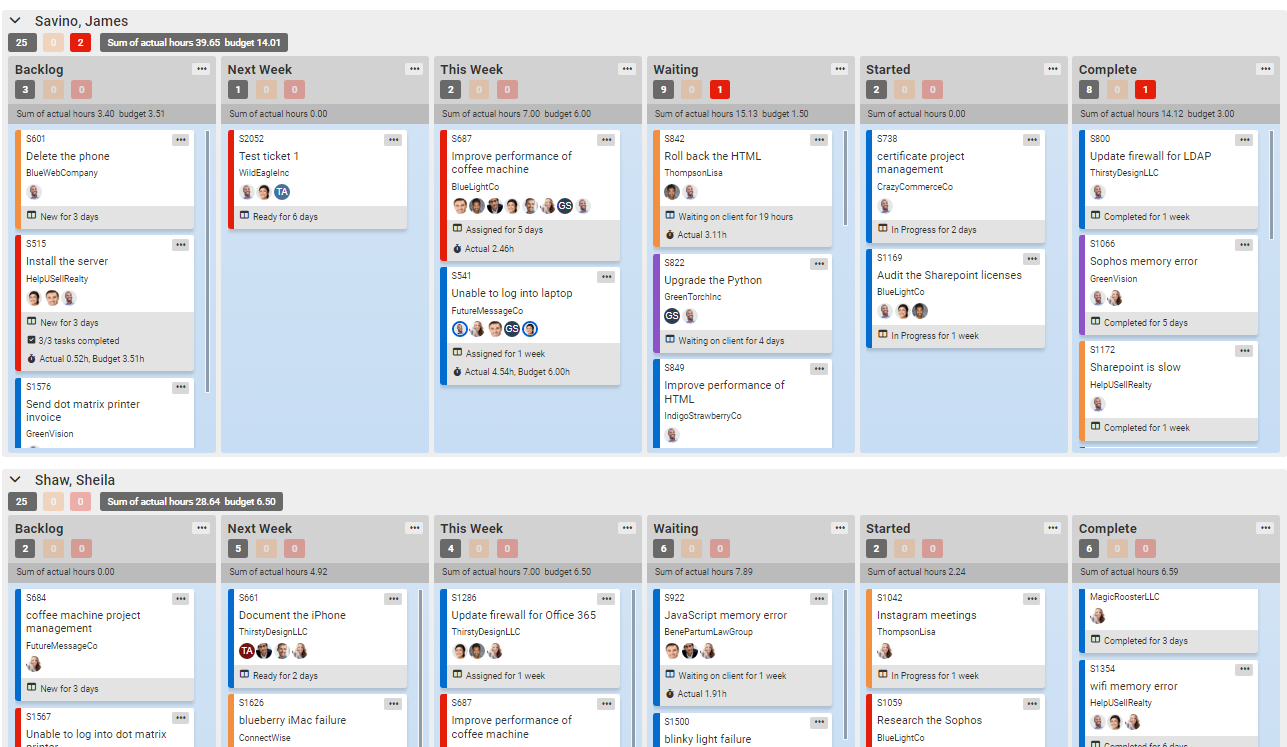
To plan out work for the next days or weeks you can use a Scrumban board. On this board you can create columns that are oriented to time in addition to the normal columns like new, ready, waiting, in progress, and completed. For example, you can have columns labeled "this week," "next week," "two weeks out," or any other time frame you prefer. In these columns, you can place tickets based on when you expect to be able to work on them.
You can use swim lanes for each team member to individually arrange the work for the week. This allows you to see who is working on what throughout the week. You can use the budget hours feature in TopLeft to add up the estimated hours for all the tickets in a particular column for a team member. This helps you ensure that the workload is reasonable for the week. If you see that the total hours exceed what a single person can realistically accomplish in a week, you can reassign or move some of the work to a later week.
You can also track progress throughout the week by monitoring the movement of tickets from the "this week" column to the completed column. This allows you to assess your progress against your goals. You can use this technique on a daily or monthly basis, depending on your preference and the level of overview you want.
It's important to note that you may need to create custom ticket statuses in your PSA tool to match the columns you create on the Scrumban board. For example, you may need to create ticket statuses like "this week," "next week," "two weeks out," etc., in your PSA, as these statuses may not be available by default.
Updated September 23, 2026
Comments
No comments yet.