
Dispatch Portal (Beta)
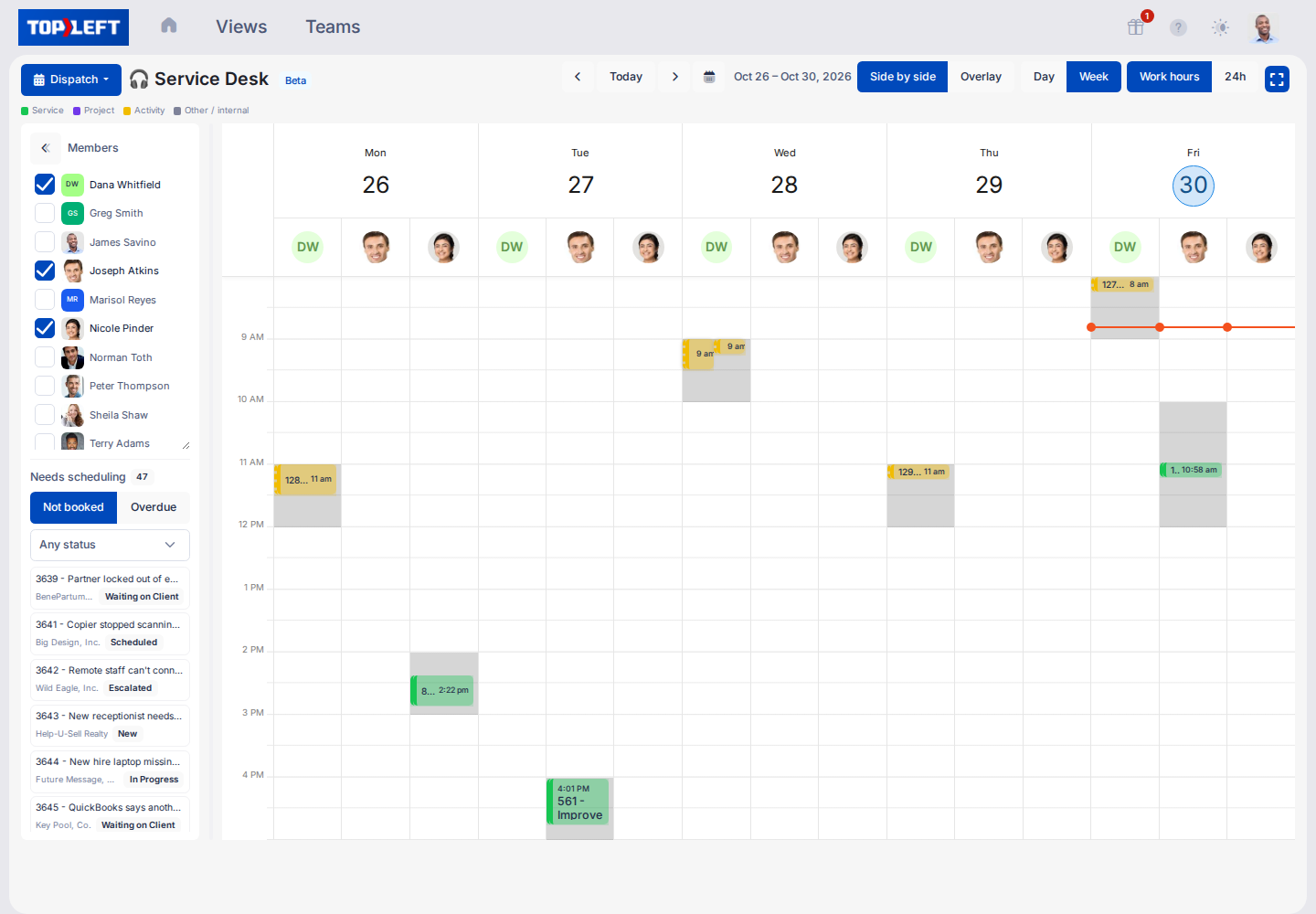
See your team's calendars side by side next to the work that still needs a time, then drag that work onto someone's day.
The Dispatch Portal puts the calendars of a view's people side by side, with the view's unscheduled work next to them. Use it for work that needs a booked time: onsite visits, client appointments, and bookings that slipped. Your boards stay the place where people pull the rest of their work.
Before you start
- The Dispatch Portal is available on any Ticket or Task view.
- The view's team decides which people you can put on the calendar. A view that doesn't have a team defined will show everyone.
Open it
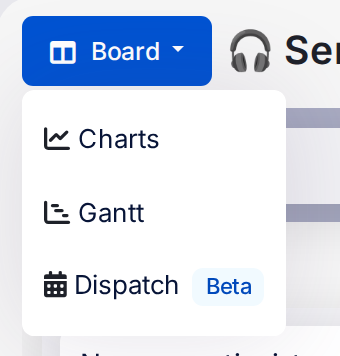
On a view, open the view menu and select Dispatch. On the dashboard, every view that offers it has a Dispatch button.
Choose people
The panel on the left lists the view's people. Its name follows your PSA:
| PSA | Panel |
|---|---|
| ConnectWise | Members |
| Autotask | Resources |
| HaloPSA | Agents |
Tick the people you want on the calendar. Nobody is ticked the first time you open a view's portal. After that, the portal remembers your choice for that view in this browser.
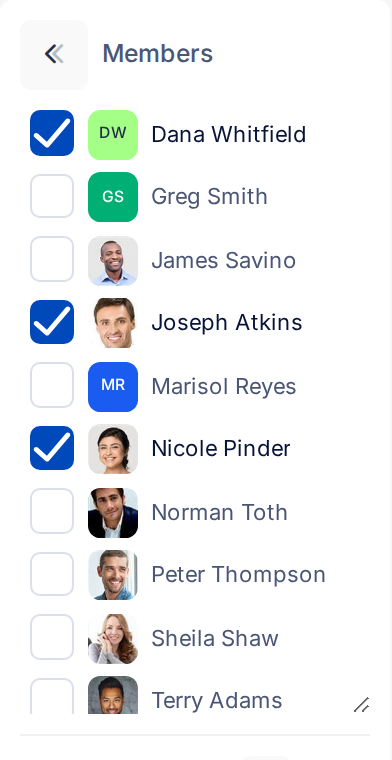
The calendar shows everything those people have booked, including work from other boards. Drag the divider between the panel and the calendar to give either more room, or collapse the panel with the arrow at its top.
Find a gap
The buttons above the calendar change what you see:
- Side by side gives each person a column. Use it to find a gap in one person's week.
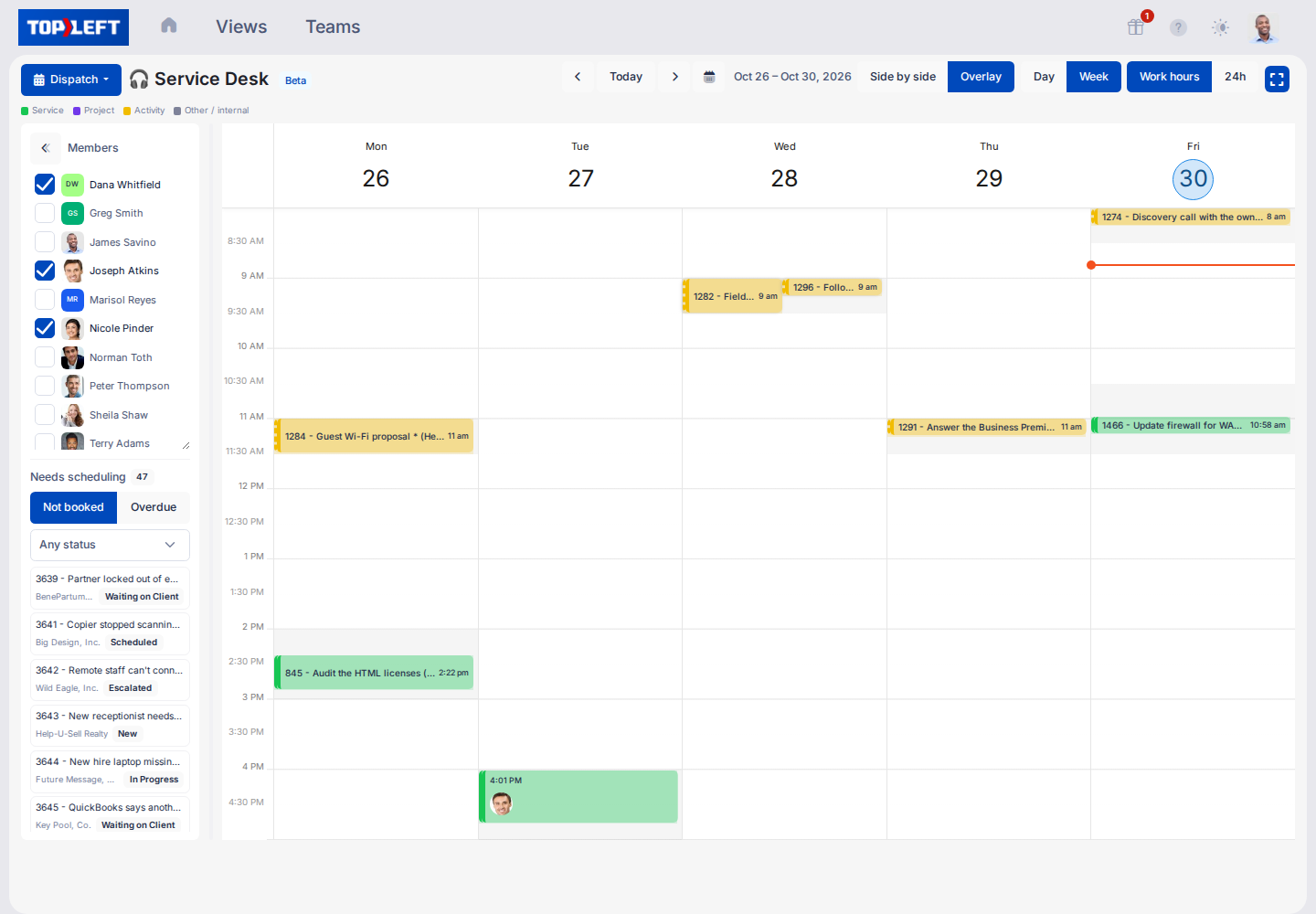
- Overlay puts everyone in one column. Use it to find who is free at all.
- Day or Week. The week runs Monday to Friday.
- Work hours shows only working hours. 24h shows the whole day, with working hours shaded.
- Today, the arrows, and the calendar button move you to another date.
Shading behind each column shows how busy that hour already is. The key above the calendar names the colours: Service, Project, Activity and Other / internal.
Schedule work from the backlog
Needs scheduling, under the people list, shows records from this view that need a time:
- Not booked: records with no future booking.
- Overdue: a booking that has passed without being finished, and nothing booked since.
Narrow the list with the status filter. It starts at Any status and offers the view's own statuses. The list shows up to 100 records.
To book one:
- Drag the record onto a person's day, at the time you want.
- The record opens on its Dispatch tab, filled in with the person, date and start time, and a duration of 1 hour.
- Fill in what your PSA needs, then save:
- ConnectWise: Status, and Where if you use it.
- Autotask: Status, and Location if you use it.
- HaloPSA: Subject is optional. Left blank, it uses the record's summary.
- To email the person, write a note in Message to before you save.
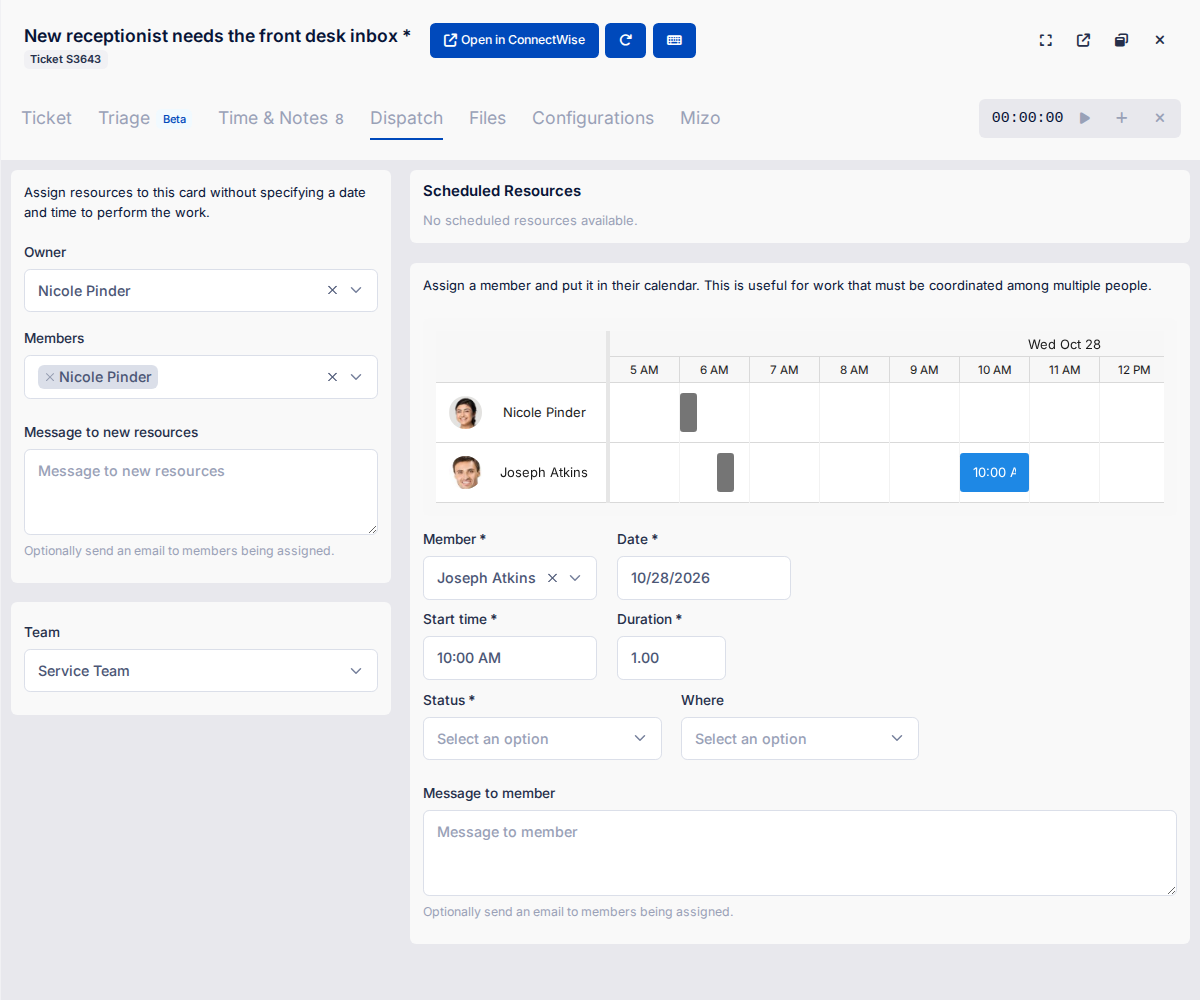
The booking goes to your PSA as a schedule entry in ConnectWise, a service call in Autotask, or an appointment in HaloPSA. The calendar refreshes when you save, and the record leaves the backlog.
Move or change a booking
- Drag a booking to another time, or to another person's column. It saves to your PSA straight away. If your PSA refuses the change, the booking goes back where it was and a message says why.
- Drag a booking's edge to make it longer or shorter.
- Select a booking to open it on the record's Dispatch tab, then change it and select Update.
In Autotask, moving a service call to someone else adds them to its tickets and tasks in their default role, then takes the first person off. Anyone else on the call stays. If the new person has no default role in Autotask, the move is refused.
Working hours
Work hours shows 8:00 to 17:00 unless your administrator changed it. To change it, open Settings, then Advanced Options. Under Kanban Options, set KANBAN_DISPATCH_START_HOUR and KANBAN_DISPATCH_END_HOUR as hours of the day (0 to 23).
Limits
- Bookings start from a record. You can't drag on an empty part of the calendar to create one.
- No unscheduling here. Remove a booking in your PSA.
- Some bookings are locked. Hover over one to see why. A booking that isn't linked to a record in TopLeft, like a ConnectWise internal meeting, has nothing to reschedule. A booking for a record and a person outside this view can't be changed from it.
- Wide teams need room. In Side by side, a warning says how many people fit. Switch to Overlay or Day, or untick someone.
- Your settings stay in this browser. The people you ticked and the layout you chose don't follow you to another computer.
Troubleshooting
- "That booking is no longer where this view last saw it. Reload and try again." Someone changed it in your PSA or another tab. Reload the page.
- "ConnectWise refused it" (or Autotask, or HaloPSA). Your PSA turned the change down. The rest of the message is your PSA's reason.
- "That booking is no longer with the person it was dragged from." Autotask only. Someone reassigned it in the meantime. Reload the page.
- The person you want isn't in the list. They aren't on the view's team, or they're inactive in your PSA.
Related
Updated November 12, 2026
Comments
No comments yet.