
Manage 2FA for Users
Require two-factor authentication for every user, and check which users have turned it on.
2FA Required Mode
To ensure your users have secure accounts, you can require users to enable 2FA before they can access TopLeft.
In this mode, users cannot access Kanban boards without first enabling 2FA for their accounts. When a user without 2FA tries to access a board, they are shown an error message and a prompt to enable 2FA.
To require 2FA, follow these steps.
- As an administrator, click the gear icon in the main menu. Under Other Stuff, click Advanced Options.
- Find SECURITY_TWO_FACTOR_AUTH_REQUIRED_MODE and check the box in the Value column.
- At the bottom of the page, click Save.
Find Which Users Have 2FA
You can check which users have enabled 2FA.
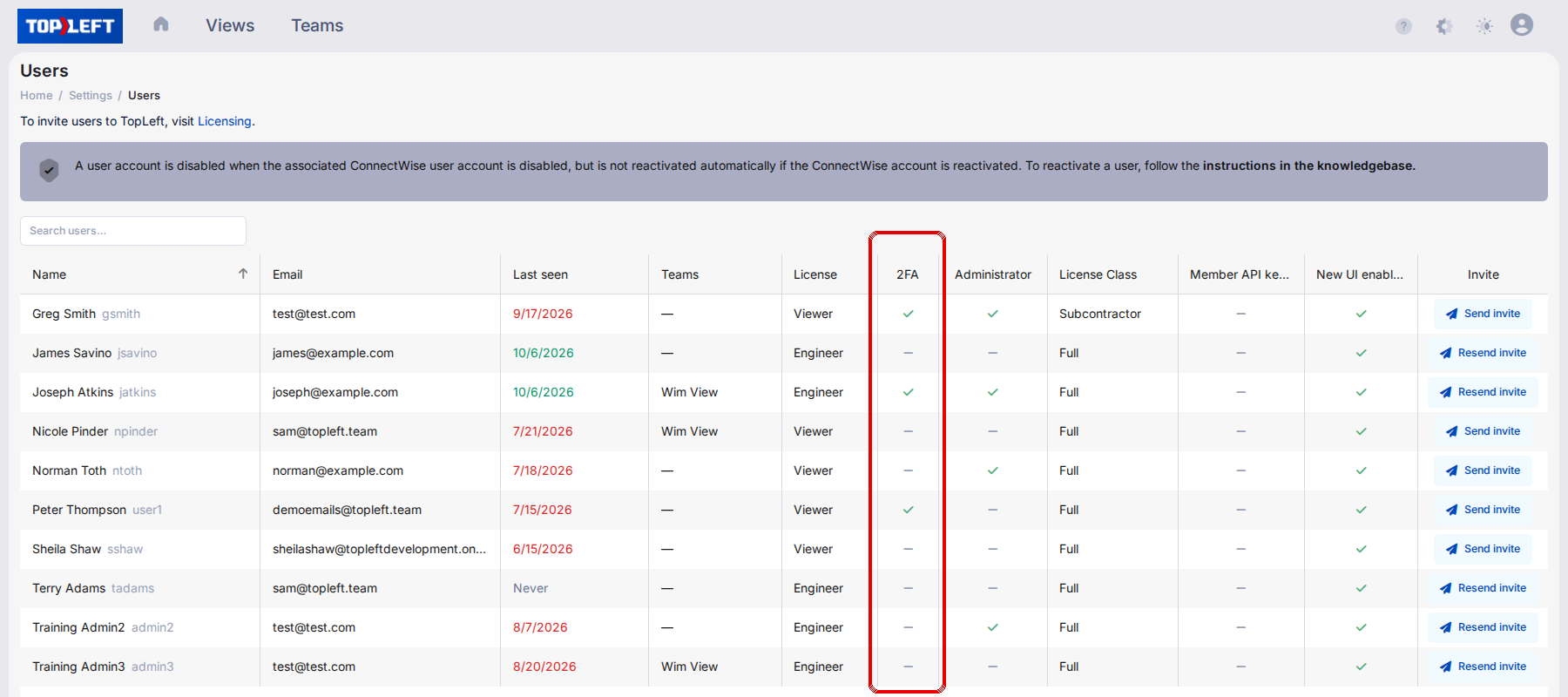
- Click the gear icon at the top right, then All Settings. Under Users, click Users.
- Review the list of users. A checkmark in the 2FA column means the user has configured 2FA.
Reset Two Factor Authentication Device
If a user loses their 2FA device, you can disable 2FA for their account so they can log in and re-enable it.
To remove 2FA from a user account, follow these steps.
- Navigate to Admin > Advanced Options.
- In the menu on the left, scroll to the bottom and click TOTP devices.
- Click the name of the user whose 2FA device you want to remove.
- Scroll to the bottom of the page and click Delete.
The user's 2FA has now been disabled. They can log into TopLeft and re-enable their 2FA.
Updated October 6, 2026
Comments
No comments yet.