
Manage Scrum Sprints with Custom Fields
Keep a sprint number in a PSA custom field, show each sprint as a swimlane, and drag work between sprints.
If your team works in Scrum sprints, keep the sprint in a custom field in your PSA (also called a UDF, or user defined field). TopLeft can show one swimlane per sprint, and moving a card to another sprint's swimlane writes the new sprint back to your PSA.
Your sprints then live in the PSA with the rest of your work. Everyone sees the same tickets, tasks and time, and you don't keep a second system such as Jira, Monday or Azure DevOps in step with the PSA.
Before you start
- Create a custom field for the sprint in your PSA, on the record type you plan sprints with: tickets, Autotask tasks, or projects. A number field works best, because the swimlanes then sort by sprint number. In HaloPSA, which has no number field, use a single selection or text field.
- Bring the new field into TopLeft: open Settings > Custom Fields and select Sync from Autotask, Sync from ConnectWise or Sync from HaloPSA. The page reloads with the field listed. In HaloPSA, only the fields picked to sync reach TopLeft, so select Choose which fields sync first.
- Moving cards between sprints needs a licence that lets you edit records. The field must not be read-only in your PSA.
The field types each PSA can group by:
| PSA | Group by | Filter box in Advanced |
|---|---|---|
| ConnectWise | Text, number and date fields | Text and number fields |
| Autotask | Number, text, picklist and date fields | Text and number fields |
| HaloPSA | Text field, single selection and date fields | Text fields |
Show each sprint as a swimlane
- Open the board for the work you plan in sprints.
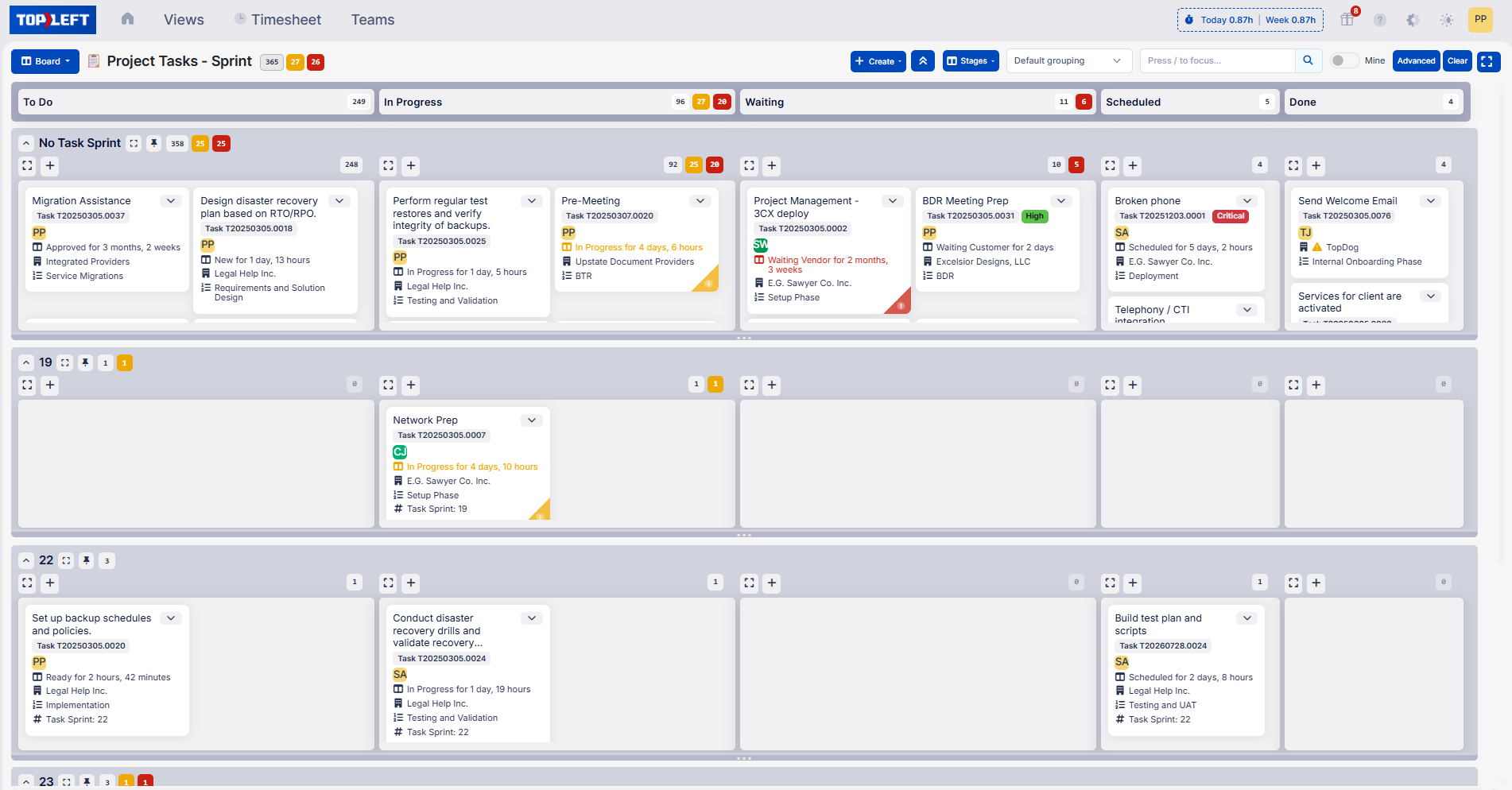
- In the grouping list at the top of the board, which shows Default grouping until you change it, pick your sprint field. It is listed with (UDF) after its name, for example Task Sprint (UDF).
Each sprint gets its own swimlane, in sprint number order. Cards with no sprint yet sit in a swimlane named after the field, such as No Task Sprint. That one is your backlog.
To open the board grouped by sprint every time, edit the view and set Default group under Grouping to the sprint field.
Plan a sprint
Drag a card from the No Task Sprint swimlane into a sprint's swimlane to add it to that sprint. TopLeft writes the sprint number to the record in your PSA.
Work that won't finish this sprint moves the same way: drag it from sprint 19 into sprint 22.
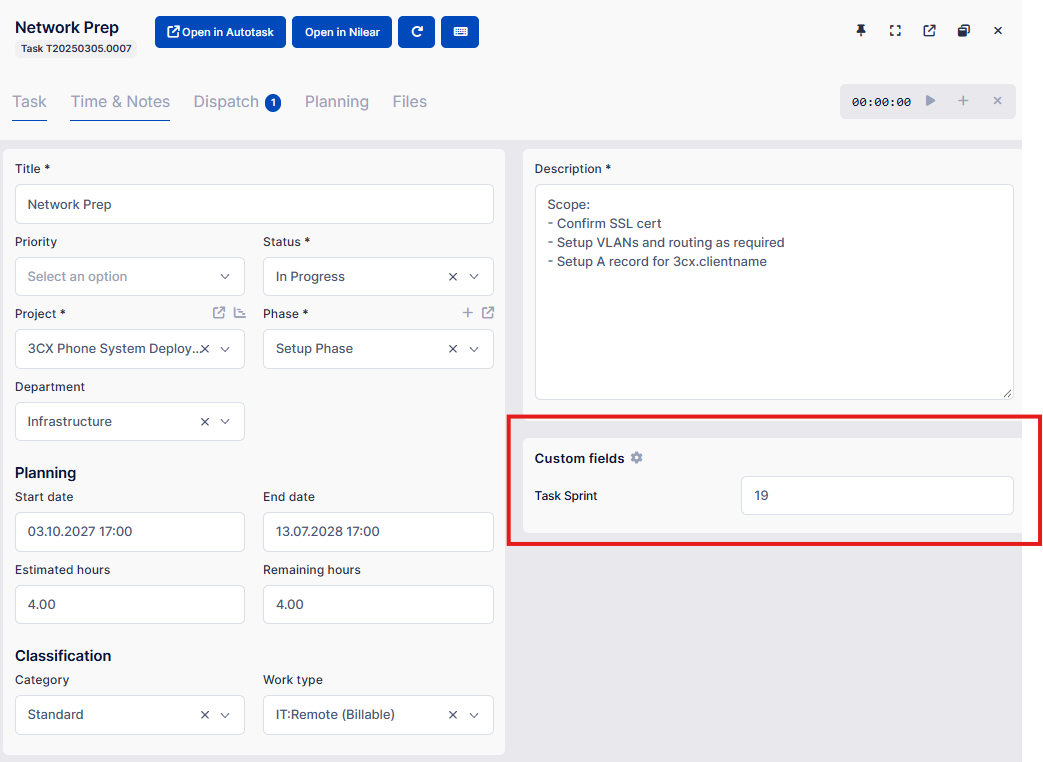
To change one card's sprint without dragging, select the card to open the editor, change the value in the Custom fields pod, and save. The change goes to your PSA. See Editing records.
If your PSA refuses the change, for example because the field is read-only there, the card stays where it was and the board shows the reason.
Show only one sprint
An administrator can add a box for the sprint field to the board's filters:
- Open Settings > Custom Fields.
- Find the sprint field under its record type (Tickets, Tasks or Projects).
- Tick Filter and select Save.
On the board, select Advanced and type the sprint number in the box for the field. A number field matches the number exactly. A text field matches what you type anywhere in its value.
Story points and other Scrum fields
The sprint is one field. Anything else your team tracks per item can be a custom field too, and works the same way:
- Story points: a number field. Show it on the cards, and sort columns by it.
- Epic or theme: a text or list field. Group by it to see every epic's work in its own swimlane.
- Sprint goal or acceptance criteria: a text field the team reads and edits in the record editor.
- Release or target version: group by it, or filter the board to one release.
To put a field on the cards, edit the view and add it to Card fields. To sort by it, pick it as the Primary sort under Automatic ordering. A column can sort its own way: see Workflows in Views.
Choose who sees the sprint field
The same Settings > Custom Fields page sets where the field shows:
- Show: the record editor shows the field. Drag the rows to set the order.
- Client portal: client portal users see the field too, if Show is ticked. They can't change it.
- Filter: the field gets a box in the board's Advanced dialog.
Leave fields your team doesn't use unticked, so the editor and the Advanced dialog stay short.
Related
Updated November 16, 2026
Comments
No comments yet.