
Manage Teams
You can define teams in TopLeft to organize your staff and Kanban boards into groups. For example, you can make a team for your project staff and a team for your service staff and associate each group with their own set of Kanban boards.
Defining teams makes it easy for staff to see which Kanban boards are relevant to them.
Teams are used in a few ways:
- In the main menu and dashboard, Kanban boards are organized by team. This makes it easy for users to see which boards are relevant to them.
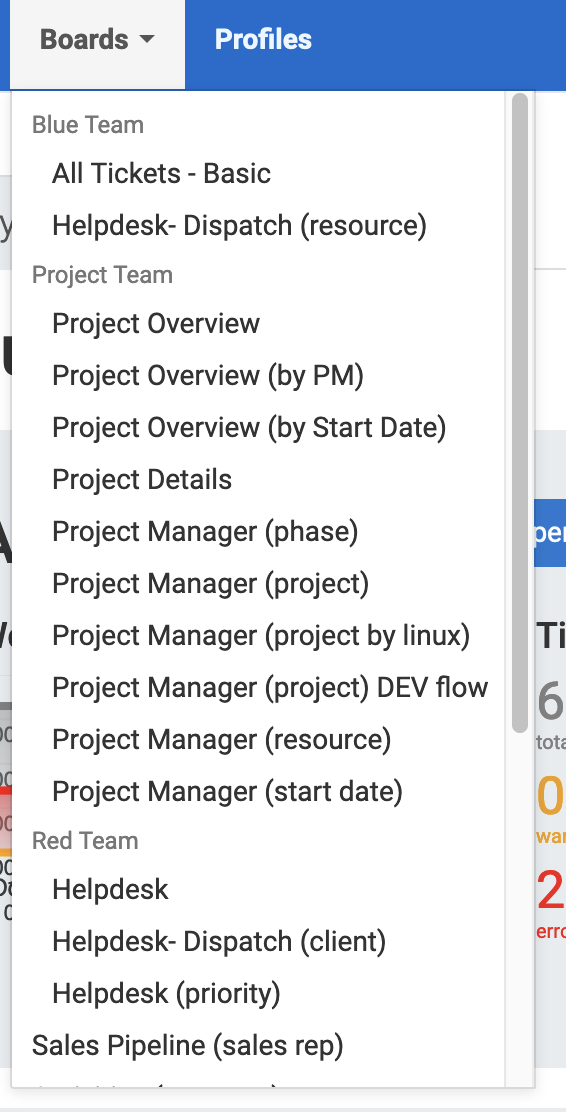
- Managers of a team can create and edit Kanban boards for the team, even if the manager doesn't have administrator privileges.
- There is a board filter that limits a board to only show work assigned to people on the team.
- Boards can be hidden from users who aren't in the board's team. This can be done individually for only certain boards, or done system-wide so that users can only see boards assigned to their team(s).
- When dispatching tickets, the list of available members is limited to team members, to make it easier for a dispatcher to find the right person to assign.
Structure of a Team
Teams in TopLeft have the following structure:
- A name
- A list of managers; managers can create and modify Kanban boards for the team. Managers do not need to have a Manager license.
- A list of members
- A list of associated Kanban boards
- Optionally, one Kanban board set as the default board
A user can be part of many teams.
A Kanban board can be associated with only one team.
At this time, teams are not integrated with teams functions available in PSAs.
Manage Teams and Membership
To manage teams, click the gear icon at the top right, then Teams. You can also reach it from All Settings: under Users, click Teams.
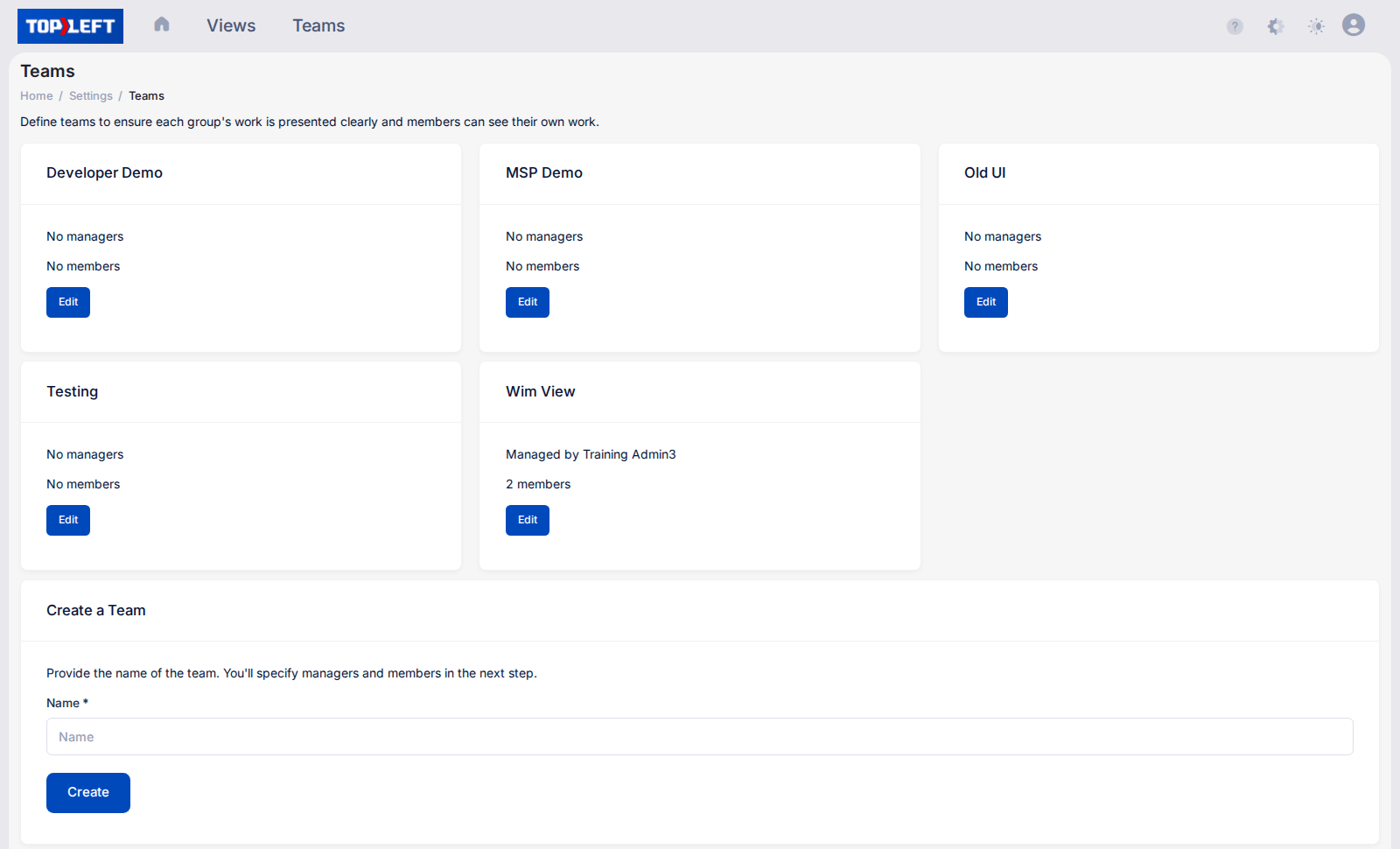
Administrator permissions are required to manage teams.
Create a Team
In the Create a Team section of the settings page, enter the name of the new team. Then click Create. After the team is created, you can set the team's managers and members.
Modify a Team
In the list of teams, find the team you wish to modify, then click its Edit button. You can then update the team's name, managers, and members. Members can use the Open Mine buttons on the dashboard to see their own work on any board.
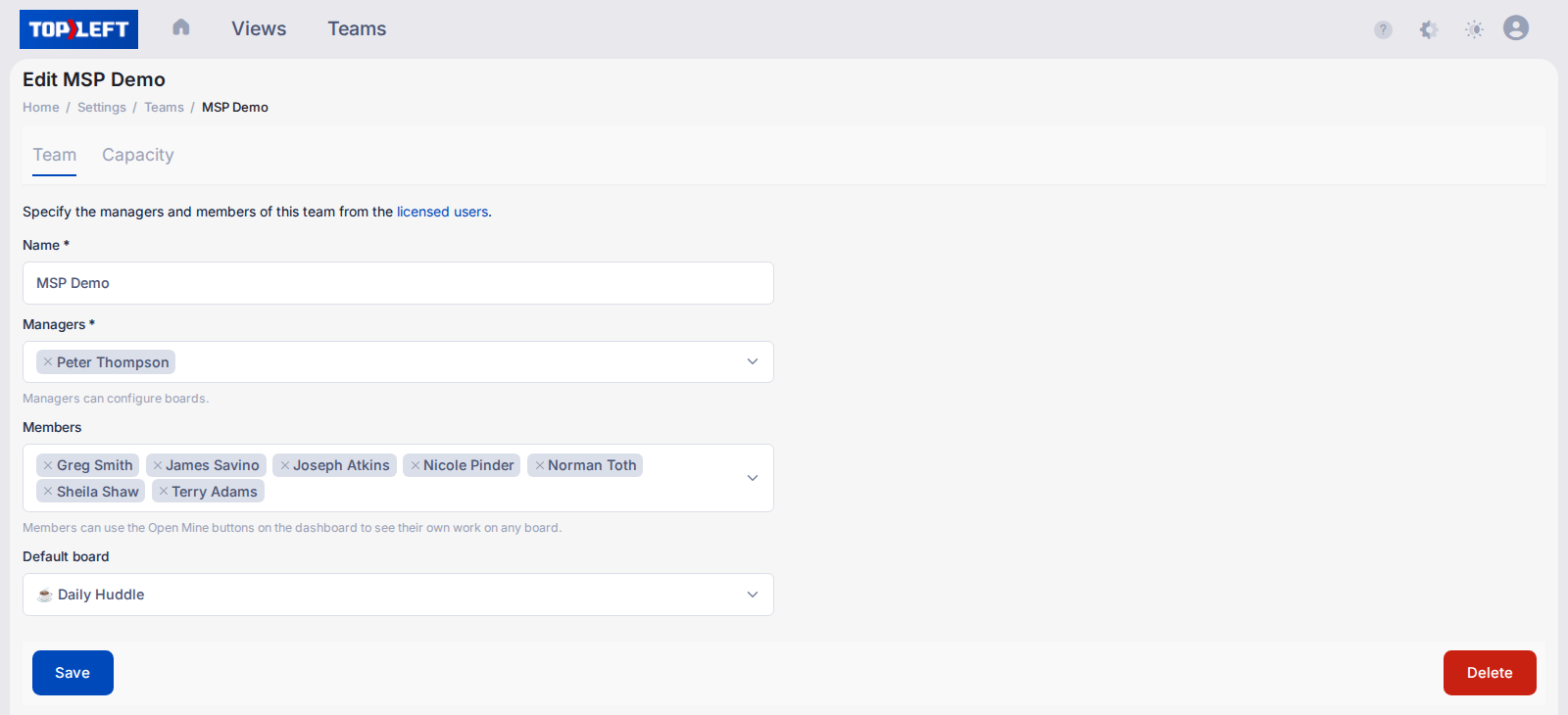
The Capacity tab on the same page sets how many hours a week the team's members are available for project work, for capacity planning.
If at least one Kanban board has been associated with the team, you can specify which board is the default for the team. The team's default board is shown in the dashboard with more detailed information than other the boards.
Kanban boards are associated with teams from the board's edit page on the Teams tab.
To delete a team, navigate to the team's edit page, scroll to the bottom and click Delete.
Access Control using Teams
Teams can be used to control access to boards.
By default in TopLeft, boards are visible to all logged-in users (staff users, not client users). However, this can be changed in two ways:
- Restrict an individual board to those on its team. To restrict a board, on the board's edit page, Teams tab, enable the "Restrict to this team" option. The board will no longer appear to users who are not on its team.
- Restrict all boards to their teams. Use this if you want users to have access only to their team's boards, and no other boards. To enable this option, on the bottom of the Teams settings page, in the Board Access section, enable the "Users can access only boards assigned to their teams" option.
Updated October 6, 2026
Comments
No comments yet.