
Create a project from an Excel plan
Drop an Excel or CSV project plan on a project board. The AI drafts the phases, tasks and dependencies, you check the draft, and TopLeft creates the project in your PSA.
Most project plans start in a spreadsheet. Drop one on a project board and TopLeft's AI drafts the project from it: phases, tasks, durations, dependencies and who does the work. You check the draft and fix what you need, then TopLeft creates the project and its tasks in your PSA.
Before you start
- It needs the new interface.
- AI has to be on. An administrator goes to Settings, then AI, turns on Enable AI, and checks that Read project plans is on under Features. It's on by default once AI is enabled.
- Anyone on a Manager or User seat can import a plan and create a project. Viewer seats can't. Saving a plan as a template needs a Manager seat.
- The sheet goes to the AI as written. If your AI data policy is set to anonymized, plans can't be imported.
Create a project from a plan
- Open a project board.
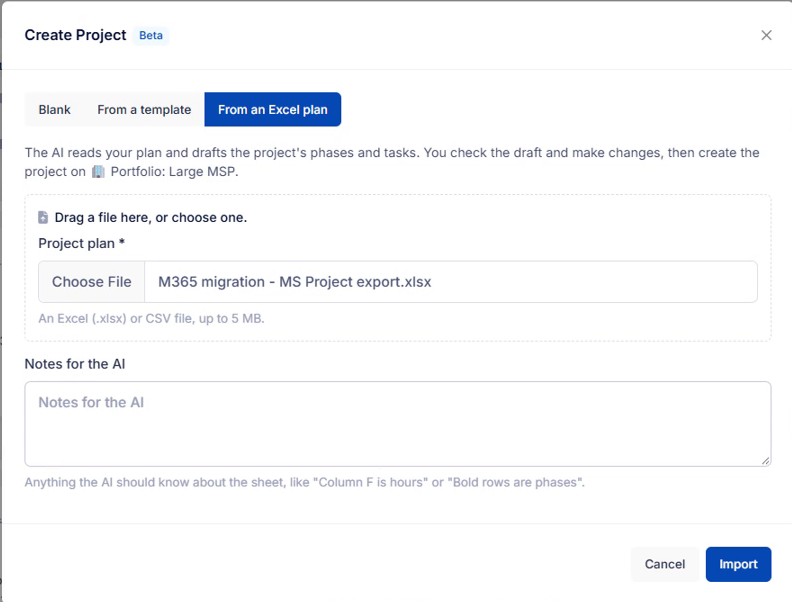
- Drag the plan file onto the board. Or click Create and choose From an Excel plan.
- Add Notes for the AI if the sheet needs explaining, like "Column F is hours" or "Bold rows are phases". Most plans don't need any.
- Click Import. Reading the plan usually takes less than 30 seconds.
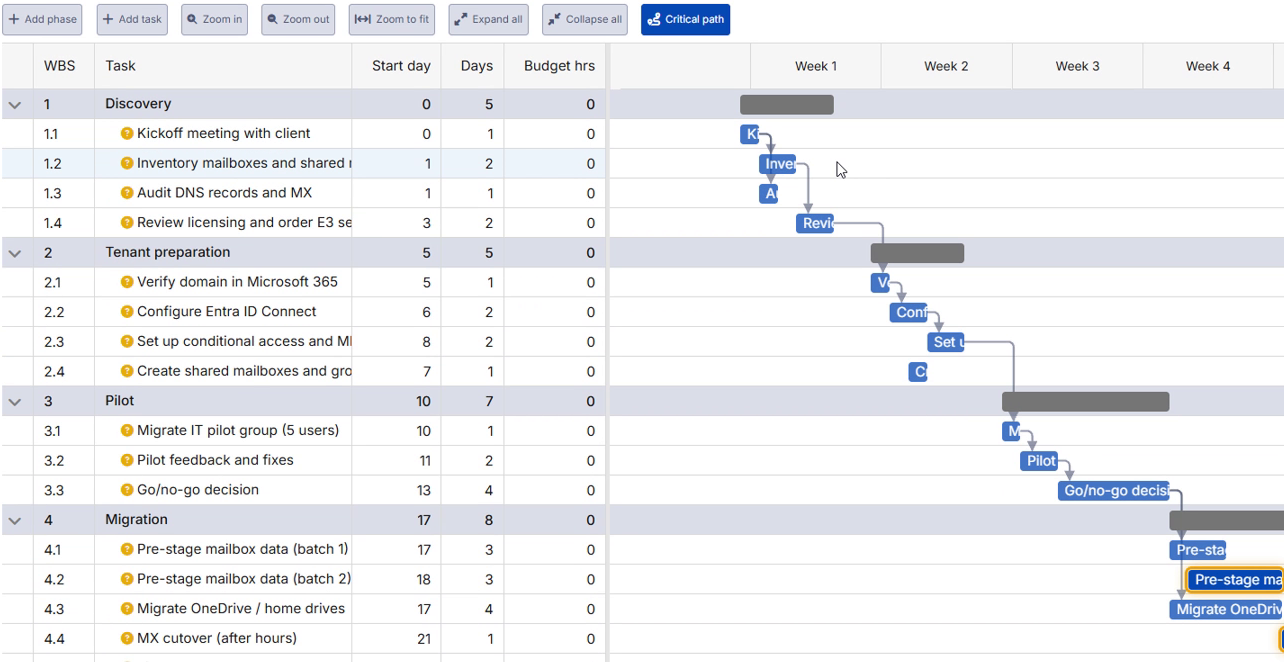
- Check the draft. Change tasks, durations and dependencies right on the Gantt.
- Click Create project, fill in the fields your PSA asks for, pick a Start date, and click Create project again.
TopLeft then creates the project, its phases and every task in your PSA. That takes one or more calls to the PSA for each task, so a big plan takes a few minutes. When it's done, click Open the Gantt or Open the board.
Tick Also save as a template to keep the plan for the next project like it. You can also click Save as template on the draft without creating a project.
What the AI reads
There's no fixed layout. The AI works out what each column means, so an export from MS Project and a plan you built yourself both work.
| From the sheet | Becomes |
|---|---|
| Bold or indented rows, outline numbers (1.2.3) or a Phase column | Phases |
| Task rows | Tasks, each in its phase |
| Duration in days or hours | Task length in working days |
| Hours or estimates | Budget hours |
| Predecessors, such as "3FS+2d" or "after 1.4" | Dependencies, with lag and lead kept |
| Resource names or roles | The matching member or PSA role |
| Notes columns | Task notes |
| Project manager, description, billing | The project's own fields, where your PSA has them |
Title blocks, totals and legends are left out.
Check the draft
The top of the draft lists what the AI decided about the whole sheet, such as "Predecessor numbers were read as values from the ID column, not row numbers". A yellow question mark beside a task means the AI was unsure about something. Hover over it to see what.
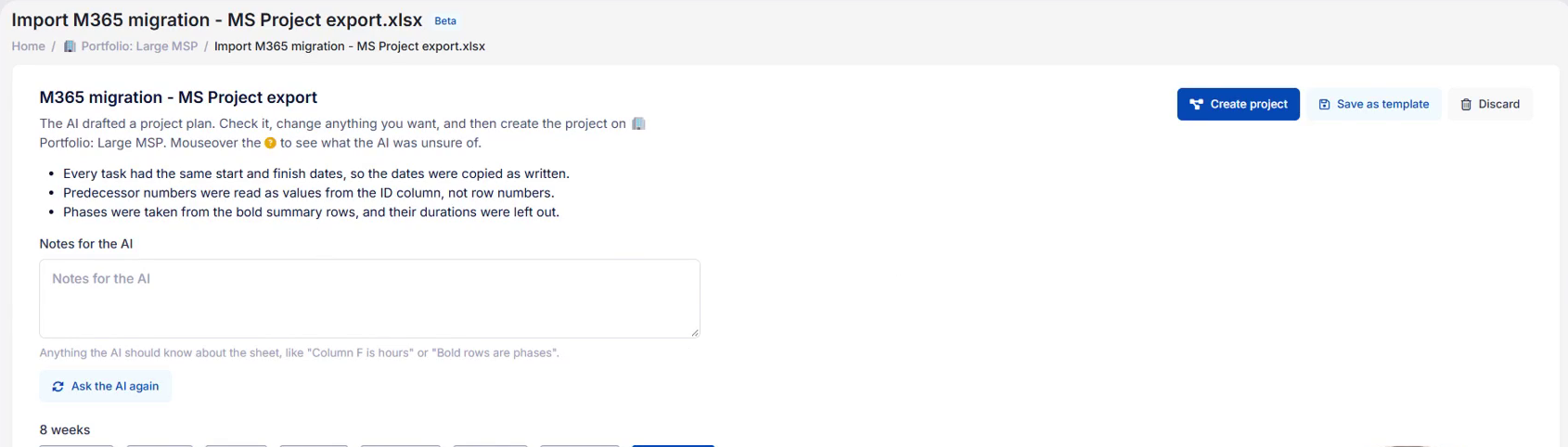
If the draft is wrong, write what to change in Notes for the AI and click Ask the AI again. The new draft replaces this one, along with any changes you made to it.
To start over, click Discard. That deletes the draft and the uploaded file.
Import a plan as a template
To build a template without creating a project, go to Settings, then Project Templates, and click Import from Excel. The steps are the same, and the draft ends with Save as template.
What each PSA gets
- ConnectWise: phases, with each task as a project ticket in its phase, including budget hours, notes and its predecessor.
- Autotask: phases and tasks with estimated hours and the description. Autotask doesn't schedule from predecessors, so each task keeps the dates from the plan.
- HaloPSA: each phase becomes a milestone, and each task a ticket in it. Halo milestones can't nest, so a sub-phase is named "Parent / Child".
What it can't do
- One predecessor per task: a task waits on one other task. When the plan has several, TopLeft keeps the one that holds the task up longest and says which it dropped.
- Start-to-start, finish-to-finish and start-to-finish links: the task starts on the day the link implies, with no predecessor.
- File types: .xlsx and .csv only, up to 5 MB, one sheet per file. Save an .xls file as .xlsx first. MS Project .mpp files can't be read, so export to Excel first.
- Size: up to 200 rows, and fewer with some AI providers. Split a bigger plan into smaller files.
- Names that don't match: a resource name that matches no member or role is added to the task's notes, so you can assign it yourself.
Troubleshooting
- No From an Excel plan choice, and dropping a file does nothing: check that AI is on and Read project plans is turned on, and that you're in the new interface.
- "Viewers can't create projects.": you're on a Viewer seat. Ask an administrator for a User or Manager seat.
- "The plan has more than ... rows": split it into smaller files. The limit depends on your AI provider.
- The AI stops or can't finish: try again. A long plan may need splitting.
Related
- Manage Projects with Gantt Charts
- Capacity Planning: Project Scheduling
- Can you create projects or tickets?
- Create projects from an Excel plan, the announcement with a short video
Updated November 12, 2026
Comments
No comments yet.