
Connect AI Agents to the TopLeft MCP Server
Work with your TopLeft boards from Claude, ChatGPT, Copilot or any MCP agent: summarise work, change records in plain language, and connect TopLeft to your other systems.
TopLeft has an MCP (Model Context Protocol) server, so AI agents like Claude, ChatGPT, Microsoft Copilot and n8n can work with your TopLeft data directly.
- Save time. Ask for what you need instead of clicking through boards, or copying and pasting data into an AI chat.
- Summarise. Get the state of a board, a project or a ticket's history in a few lines.
- Make changes in plain language. Move cards, update tickets, plan projects and log time by saying what you want.
- Connect your other systems. Agents and automation tools like n8n can read from TopLeft and write to it alongside your other tools.
Before you start
- An administrator needs to turn on MCP and choose which permissions each named user gets.
- Users need a TopLeft license.
Turn it on
- Open Settings. In the AI section, select MCP.
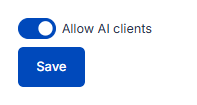
- Turn on Allow AI clients and select Save.
Choose who can connect
On the same page:
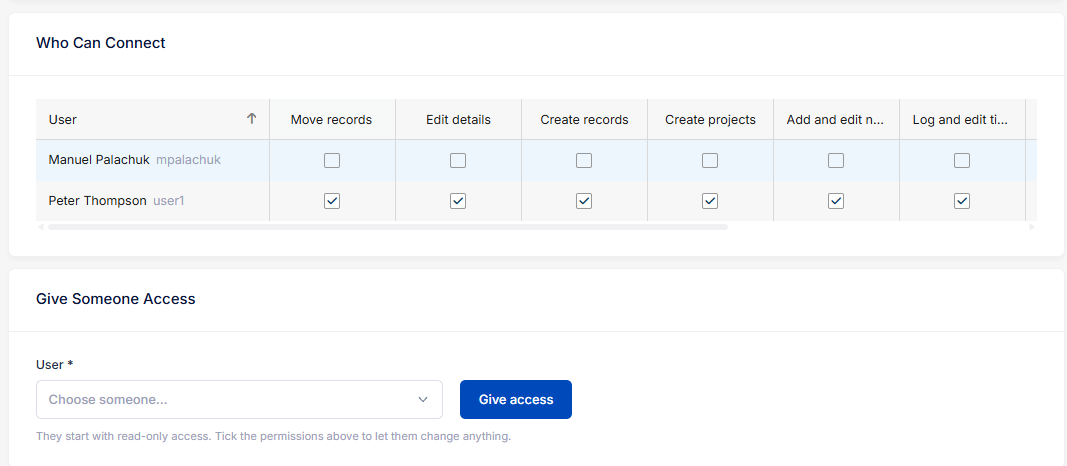
- Under Give Someone Access, choose them in User and select Give access.
- They appear under Who Can Connect with read-only access. Tick the permissions you want them to have. Each tick saves straight away.
| Permission | What the AI agent can do |
|---|---|
| Access | Read the views and records the user can open: columns, record details, projects, notes, time entries and Gantt schedules. Always included. |
| Move records | Move records between columns and groups, the same as dragging a card. |
| Edit details | Change a record's fields, description and planning dates, and set Gantt dependencies. |
| Create records | Create records through a view's create form, including follow-ups and project phases with their tickets or tasks. |
| Create projects | Create projects. Works only together with Create records. |
| Add and edit notes | Add notes to records and edit the user's own notes. |
| Log and edit time | Add time entries and edit the user's own time entries. |
The MCP server enforces TopLeft licensing. A regular User or Manager license is required to change any data. A Viewer license can only access data.
The grid also shows when each user last used MCP and who gave them access. Select Remove to take a user's access away; any key or app they connected stops working straight away.
Connect an AI agent
Most agents connect with an address and a sign-in:
- In TopLeft, open your account menu and select MCP Keys. You see it once an administrator has given you access.
- Select Copy next to the address at the top of the page. It is your TopLeft address with
/_stream/mcpon the end. - In your AI agent, add a custom connector and paste the address.
- The agent brings you back to TopLeft. The page names the agent and lists what it will be able to do. Check the list, then select Connect.
Use a key instead
Some AI clients don't support OAuth for logins, but you can issue an API key for them:
- On MCP Keys, under Create a Key, fill in What is this key for? (for example, "Claude Desktop on my laptop") and select Create key.
- Copy the key now. It starts with
tl_and isn't shown again. - Set your client to send it as a Bearer token:
Authorization: Bearer tl_...
Keys don't expire. Select Revoke next to a key when you no longer need it. Unlike a sign-in connection, a key picks up permission changes straight away.
Disconnect
On MCP Keys, select Disconnect next to an app or Revoke next to a key.
Prompts to try
Ask in natural language; the AI will usually figure out the rest. Responses include TopLeft links, so you can open the Kanban and Gantt views it talks about. It's usually faster if you name the TopLeft view you want to work with.
See where things stand
- "How can we rebalance work on our Huddle board?"
- "From the Project Overview board, which project needs the most attention?"
- "What are the top 10 neglected tickets on the service board?"
- "Who has the most open work on the service board, and what could someone else pick up?"
- "What's waiting on the client, and for how long?"
Dig into a record
- "Summarise the notes on ticket 48213 and tell me what's blocking it."
- "Have we seen this printer error before? Find similar closed tickets and how they were fixed."
- "Show me the critical path for the server migration project. What happens if the firewall phase slips a week?"
Plan a project (needs Create records, Create projects and Edit details)
- "From this PDF SOW for a project we just sold, create the project with phases and tickets and budgets."
- "Add predecessors and timelines so we can complete this project over 2 weeks."
- "Add a Cutover phase to this project with a ticket for each step in this checklist."
Keep the board current (needs Move records, Add and edit notes or Log and edit time)
- "Move ticket 48213 to Ready and assign it to me."
- "Log 30 minutes on ticket 48213 for today: called the client, confirmed the fix."
- "Go through my tickets in Waiting and add an internal note on each with what I'm waiting for."
What the agent does is recorded like any other change. Moves, edits and new records show in the audit log with "(via MCP)" in the description.
Limits
- Your own view rules apply. A view hidden from you in TopLeft is hidden from your agent too. Internal notes are included, marked internal, because you see them in the record editor.
- No deleting. The agent can't delete records, notes or time entries.
- Your own entries only. It can edit only the notes and time entries you wrote.
- Time entries can be up to 24 hours, can't be in the future, and can't go back more than 90 days. Where your PSA requires a billing code, the agent must give one.
- Not covered yet: attachments and scheduled appointments.
- Closed records can be read only on a view that has a column for their status. Search finds them anyway and names the view to use.
- Rate limit: 120 tool calls per minute for each key, or for each app and user.
- Your PSA still acts on what it receives. A note added over MCP can email the client, the same as one added in TopLeft.
- Autotask: a project start date set through the agent is kept in TopLeft. Autotask doesn't store it.
Troubleshooting
- The MCP Keys menu item is missing. An administrator hasn't given you access yet, or MCP is turned off.
- "Disconnect the client and connect it again to use it." You were given a permission after connecting. Reconnect to pick it up.
- "This key is not allowed to..." Ask an administrator to tick that permission for you under Settings > MCP.
- "This licence does not allow..." Your license doesn't allow that change in TopLeft either.
- "Too many tool calls." The agent hit the rate limit. It can try again after the number of seconds shown.
- A write came back as unknown. Your PSA didn't answer in time. Ask the agent to read the record again before retrying, so the change isn't made twice.
- "Something went wrong running this tool. Reference: ..." Email help@topleft.team with the reference.
Related
Updated October 22, 2026
Comments
No comments yet.