
Impersonate Client Portal Users
Legacy interface
When you make a Kanban board for Client Portal, it's helpful to be able to see how the board appears to a client. You can see how a board looks to a user by following these steps:
- Set up a client portal board
- Go to the Client Portal settings page. In the main menu click the gear icon, then under Users click Client Portal.
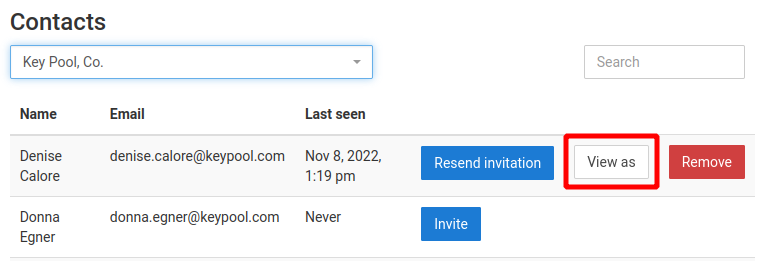
- Under Contacts, select the company of the user who you want to view the board as.
- In the user list, find the user. You may need to use the search field to search by name.
- Click the contact's View As button.
- You are shown a client portal Kanban board as it would appear to the user. Interactive functions such as adding notes and dragging cards are not available for you. If multiple boards are available to the user, you can view them by following the links in the main menu.
- To return to the settings page, click the Exit button in the main menu.

Updated September 23, 2026