
Confirm Browser Settings for Autotask
When you click a card title (in the old UI), or click a card's "Open in Autotask" link (in the new UI), TopLeft opens a new browser window with the record open in Autotask.
However, some browsers require special configuration to allow Autotask pop-ups.
To ensure TopLeft can open Autotask tickets in your browser, follow these steps:
Log into Autotask PSA.
Follow these instructions to ensure the settings for Autotask are correct: https://ww16.autotask.net/help/Content/2_Getting_Started/BrowserSettings.htm
Follow both sections in that document: "Checking your browser settings" and "Allowing pop-ups in your browser."Ensure your TopLeft domain is permitted to open pop-ups, using one of these methods:
- Trigger the opening of an Autotask link in TopLeft, and when your browser blocks the action and prompts you to permit it, permit it permanently for TopLeft.
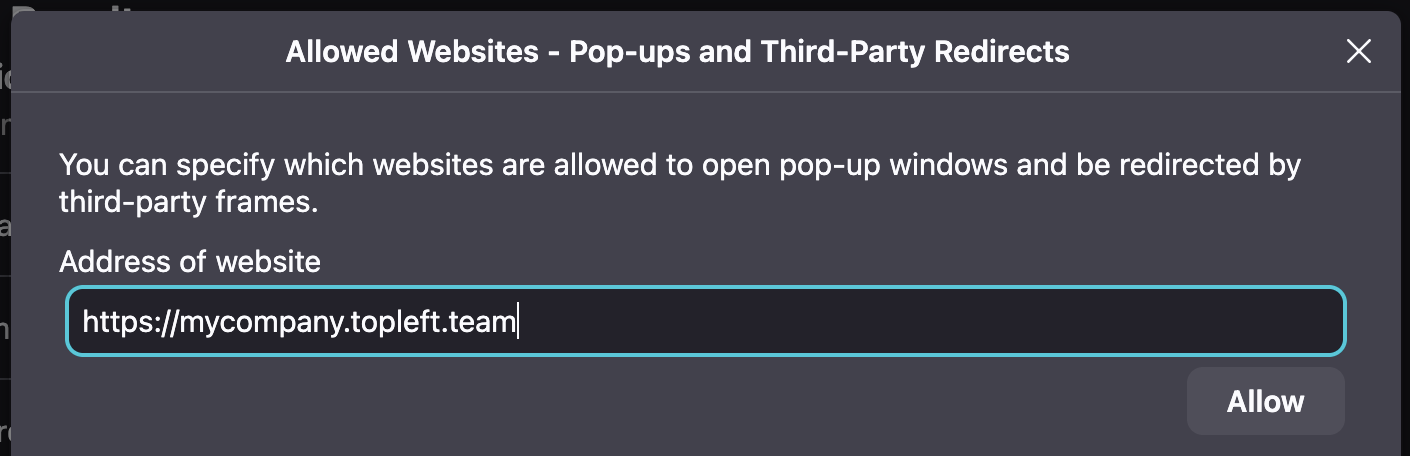
- Manually permit TopLeft to open pop-ups. Add your TopLeft domain (ie mycompany.topleft.team) to the list of permitted sites. The necessary steps vary by browser. Here is an example of what to submit in Firefox:
Updated September 23, 2026
Comments
No comments yet.