
Convert Legacy Boards to Views
Turn a Kanban board from the old UI into a View in the new UI, one board at a time or all at once.
Boards made in TopLeft's old UI still open, but everything new goes into Views. Converting a board makes a View from its settings, so your team keeps its columns, filters and formatting without building the View by hand. For what Views give you over the old boards, see What's New in the New UI?.
Before you start
- To convert one board, you need to be able to edit it.
- To convert several boards at once, you need to be an administrator.
- The board stays where it is. Converting never deletes or changes the old board, apart from the optional redirect below, so you can check the View before anyone lets go of the board.
- HaloPSA and AlgaPSA customers have always used the new UI, so they have no legacy boards to convert.
Find your legacy boards
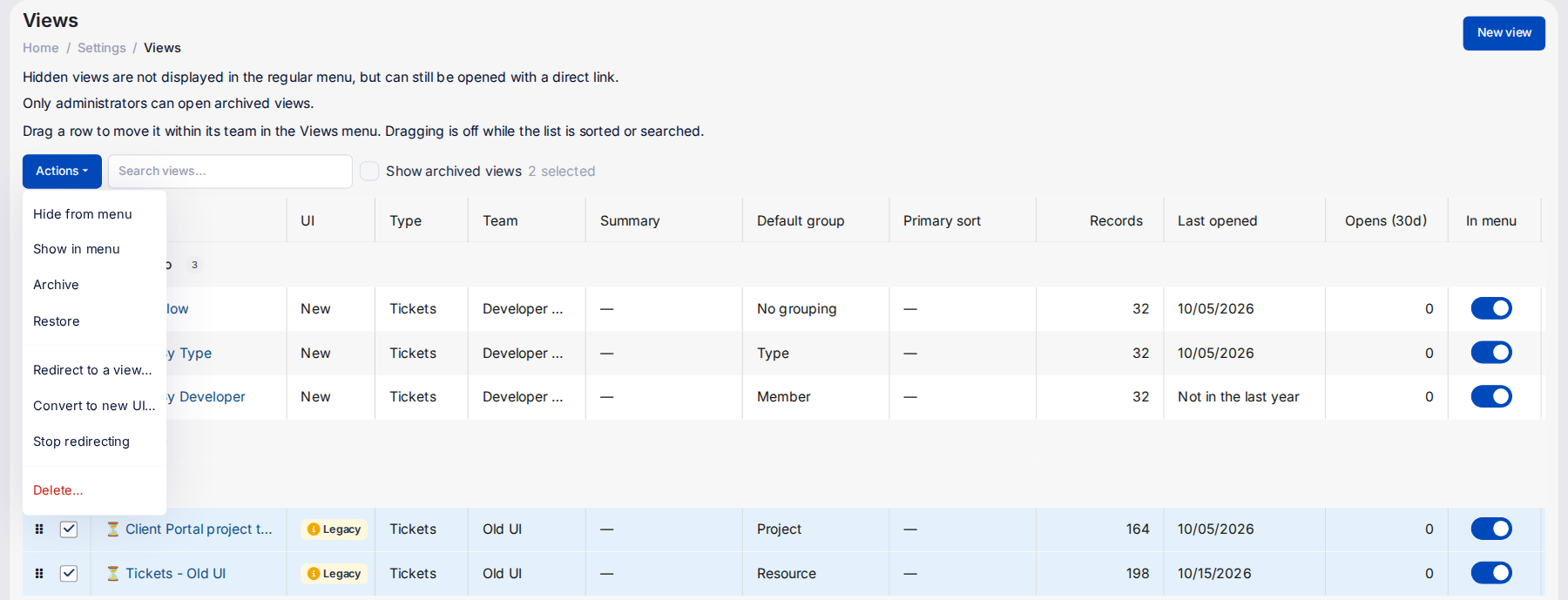
Legacy boards show in the Views menu next to your Views. Administrators can see them all in one list: open the Views menu and click Manage Views, or go to Settings, then Views. Each legacy board carries a Legacy badge.
Convert one board
Open the board.
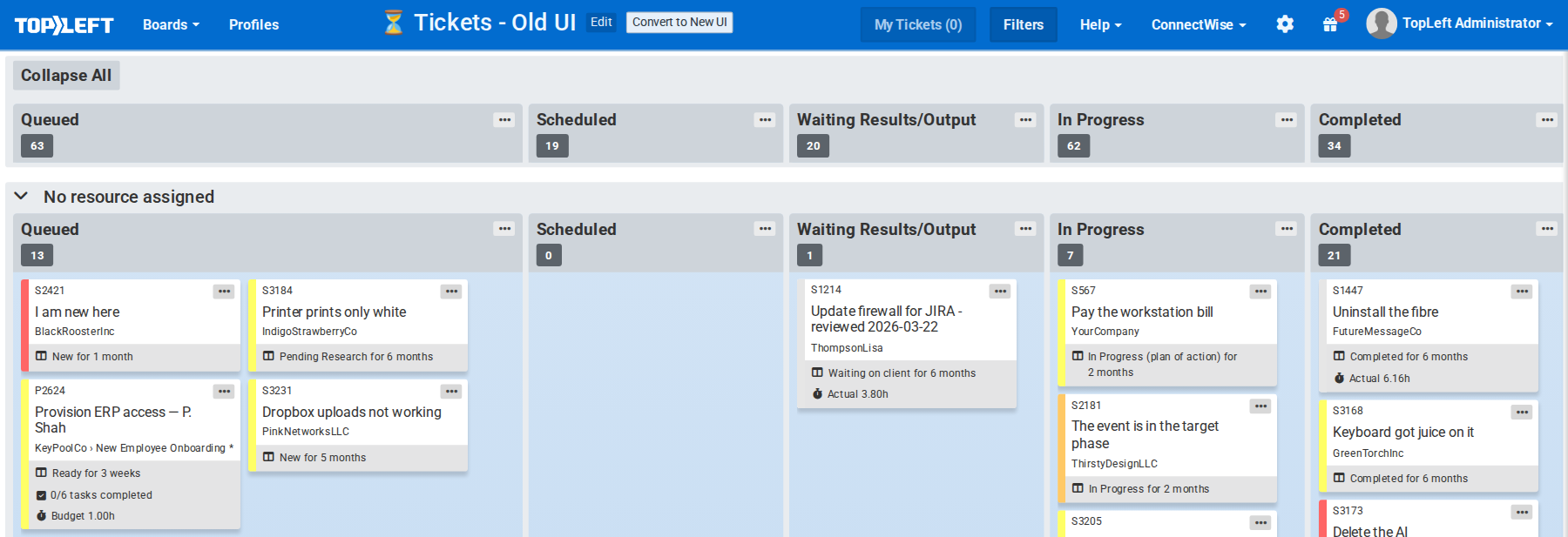
Click Convert to New UI, next to Edit beside the board's name. You can also find Convert to new UI view in the board's settings, or click the board's Legacy badge on Manage Views.
Read the summary. It lists the stages the View gets, any conditional formatting that comes across, and under Not carried over, any settings the new UI doesn't support.
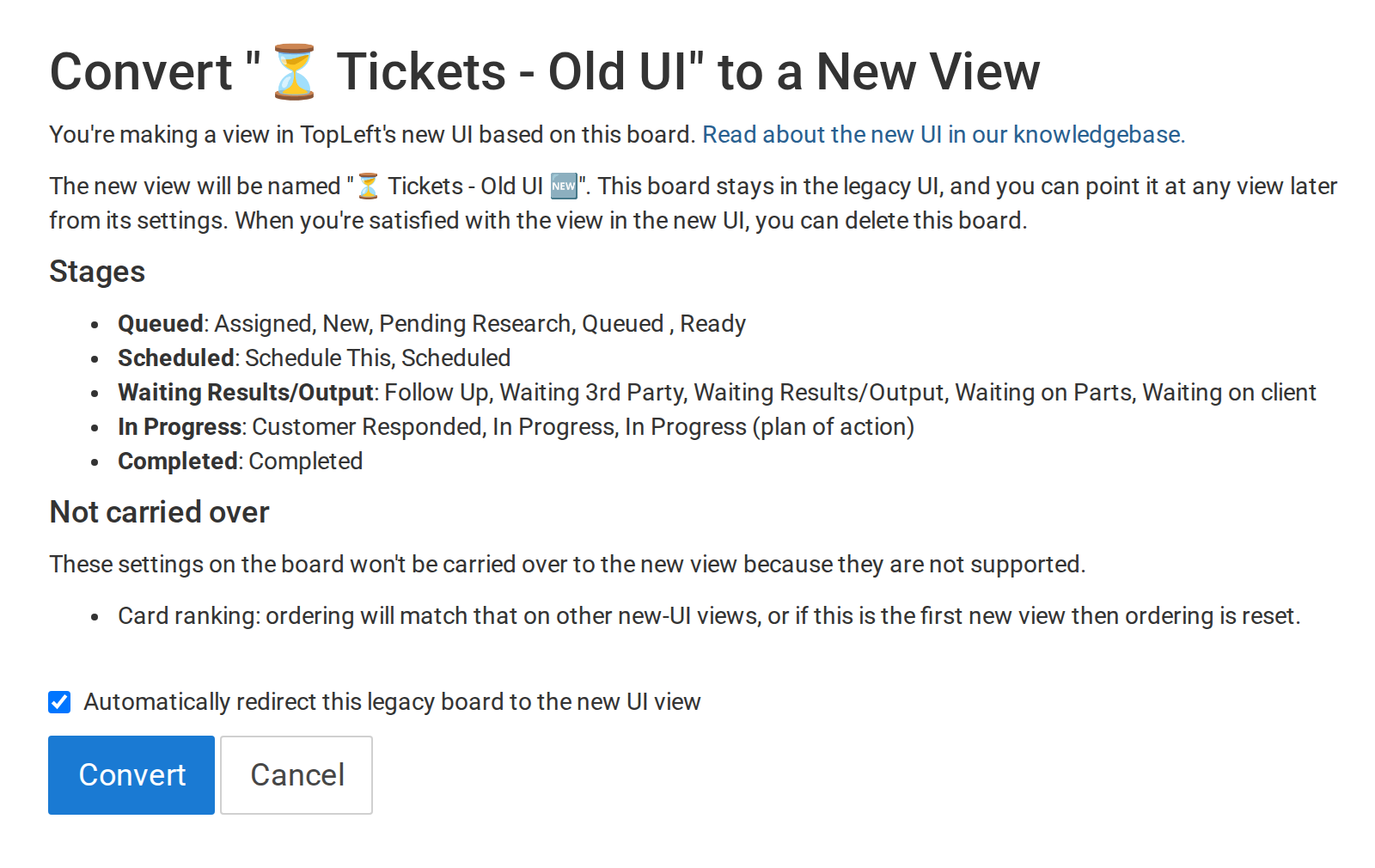
Leave Automatically redirect this legacy board to the new UI view ticked if you want people who open the old board to land on the new View instead.
Click Convert. TopLeft opens the new View's settings so you can adjust it.
Convert several boards at once
Open the Views menu and click Manage Views.
Tick the legacy boards you want to convert.
Choose Actions, then Convert to new UI….
Check the summary for each board.
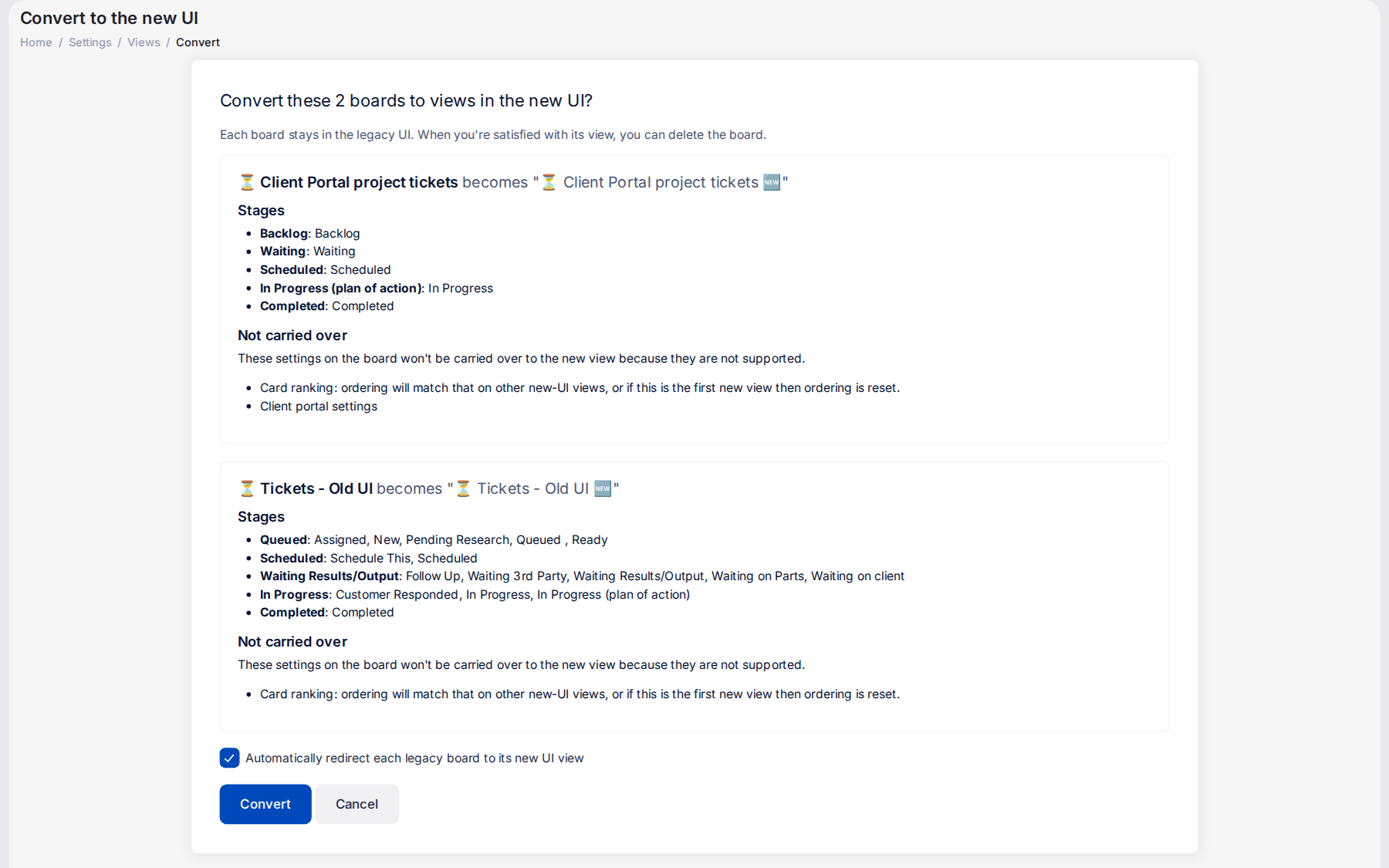
Leave Automatically redirect each legacy board to its new UI view ticked to send people from the old boards to the new Views.
Click Convert. TopLeft converts all of them or, if something goes wrong, none of them.
Boards that can't be converted, such as one that is already a View, are listed as skipped.
After you convert
- A redirected board shows a green Legacy badge on Manage Views. Hover over it to see which View it opens.
- To send a board's visitors to a different View, tick it on Manage Views and choose Actions, then Redirect to a view….
- To let people open the old board again, choose Actions, then Stop redirecting.
- When the View works for your team, delete the old board.
What doesn't carry over
The summary before you convert lists anything that won't come across for that board. The usual ones are settings the new UI handles per View instead of per column, such as due dates, SLA times and last note or time entry dates on each column. Set those on the View after you convert. Card ranking often shows up too: the new View orders cards the way your other Views do, or starts fresh if it is your first View.
Related
- What's New in the New UI?
- Managing Views
- Manage Kanban Boards, for boards still in the old UI
Updated November 27, 2026
Comments
No comments yet.